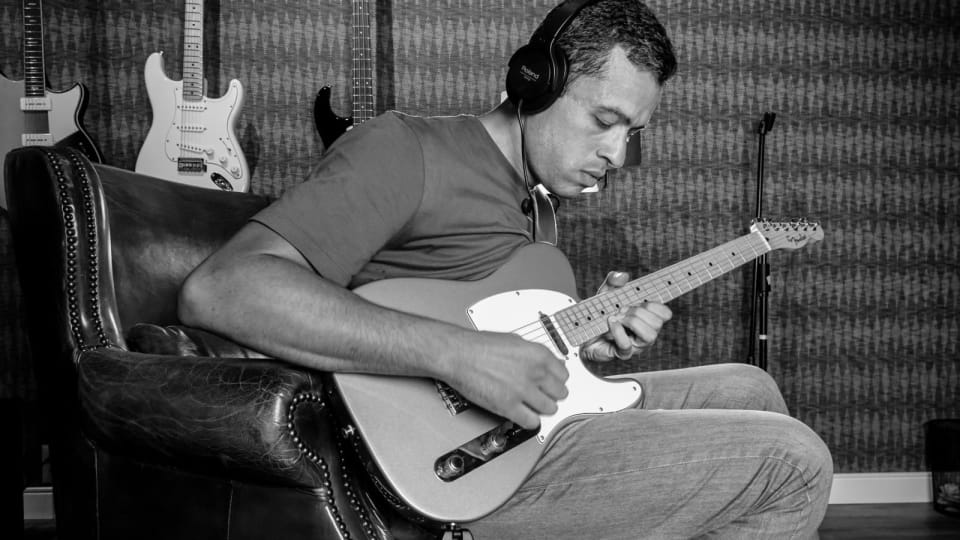
Photo: Jeith Photography / Pexels.
To make a backing track from a recording, separate it into instrument parts, then mute the part you want to play. Moises calls those parts tracks or stems. The useful practice sequence starts before the mute button: listen to the part alone, bring the band back around it, lower the guide, and finally take its place.
There is one buying distinction to make immediately. Moises Free can separate vocals, bass and drums, with the remaining instruments together in an Other track. Removing only the guitar requires paid custom separation. Muting Other in the free version can remove the keyboards and other accompaniment along with the guitar. The current Free separation options explain that boundary.
This tutorial follows Moises' web-player instructions and its own demonstration, with notes for the mobile app. We haven't conducted an independent separation or listening test.
What you need, and when it costs money
You need a Moises account, a computer or supported mobile device, and an audio file you are allowed to upload and process. Existing headphones or speakers are enough; you do not need an audio interface just to play along. Moises offers web, desktop, iOS and Android versions through its download links. The steps below assume you can find a saved file and recognise the section you want to rehearse.
Your own band recording is a straightforward starting point when everyone involved has agreed to its use. A supplied rehearsal recording can also work if its permission covers this processing. A Spotify or Apple Music subscription does not supply an uploadable file or permission to extract one. Moises explains why streaming-service links are not accepted. Use a permitted local file such as MP3 or WAV; its format list includes other audio and video options.
| Plan | Relevant access | US Apple price |
|---|---|---|
| Free | Five uploads per calendar month; up to five minutes each. Vocals/instrumental or vocals/drums/bass/Other. | $0 |
| Premium | Custom instrument selection, including guitar; up to six output tracks including Other. Files up to 20 minutes. | $5.99 monthly $39.99 yearly |
| Pro | Further options including separate drum-kit elements and Hi-Fi separation. Files up to 20 minutes. | $29.99 monthly |
Prices checked 16 November 2026 in the US App Store listing, which names these billing periods. They are recurring subscriptions, not web or Android checkout quotes; local offers and taxes can differ. Confirm the total and renewal terms before paying. The plan limits come from Moises' custom-separation guide and file-duration rules.
For bass, voice or the complete drum kit, start with Free and one short song. For a guitarist who needs the keyboard part left in, Premium is the relevant step up. Pro has a narrower reason to buy here: for example, isolating a snare while keeping the rest of the kit. Paying more cannot guarantee an artifact-free result from every recording.
Choose the file before using an upload. Deleting a song does not restore a Free upload. Also, Free chord detection and the Smart Metronome cover only the first minute, even though the separated audio can be longer.
Separate the right part
- Add the recording. In the web app, choose New and select a local file. In the mobile app, use the add button and select your file source. Keep an untouched copy of the original.
- Choose the separation before processing. For a bass exercise, the four-part vocals/drums/bass/Other split is enough. On a paid plan, choose the custom instrument you need. A guitarist replacing a solo may want lead and rhythm guitars separately; muting all guitars would also remove the chords supporting that solo.
- Submit, wait for processing, then open the song. Locate the target track and its volume control. On the web player, S solos a track and M mutes it. Solo temporarily silences the other tracks; mute silences the selected one.
- Check the result before learning from it. Solo the target part for a few seconds, then play the remaining mix with that part muted. Make sure the part you need is actually in the selected stem and that enough accompaniment remains to practise.
Moises' upload and editing instructions show the platform-specific controls. A public-link upload field needs an accepted file source; it does not turn an arbitrary streaming page into a usable recording.
The demonstration below shows Moises' own sequence. Instrument controls begin around 0:48; slowing and looping appear around 3:19. It is useful to watch the faders while listening to which part stays in the mix. The written walkthrough gives the same stages if you prefer text.
Rehearse the entrance, not just the isolated notes
Imagine an eight-bar verse leading into a chorus in C. You play bass, and the awkward moment is a G pickup on the last eighth-note of bar 8, followed by C on the chorus downbeat. The notes are easy; arriving with the drummer is the problem.
This is an illustrative arrangement, not a transcription of the video. Put the loop around the last two verse bars and the first chorus bar so the entrance has an approach and an arrival. Starting the loop exactly on the C would remove the thing you are trying to learn.
A three-bar window around the chorus
In the web player, drag a selection on the waveform, adjust its ends and enable looping. Moises makes this loop control available on Free as well as paid plans. Leave enough audio before the pickup to hear the pulse. If a loop restart feels abrupt, practise through it for now and later check the entrance in a longer uninterrupted section.
- Listen with bass soloed. Find the pickup, the C and the length of each note. Sing the rhythm or tap it before adding the instrument. If the notes themselves are unclear, use the phrase-by-phrase approach in transcribing a solo by ear.
- Restore the accompaniment and lower the bass guide. Keep it audible enough to find the entrance, but quiet enough to hear whether your own note starts late. Listen to the kick as well as the bass. Matching the reference's note endings matters as much as matching its attacks.
- Mute the bass. Play the same window without its prompt. If you miss the pickup, restore the guide for one comparison, then remove it again. Do not solve the problem simply by turning the guide back up for every repetition.
- Restore the complete mix. Check whether your articulation belongs in the arrangement. Then remove the bass once more and play the whole verse into the chorus without looping.
If the passage is too fast to coordinate, slow it modestly and keep its subdivisions intact. Moises provides speed adjustment without a corresponding pitch change, with limits on Free. Our recording slowdown guide goes further into choosing a useful practice speed. Return to the intended tempo before judging how the entrance sits in the song.
Keep the accompaniment your instrument needs
The same four passes work for other players, but the useful mix changes:
- Guitar: keep rhythm guitar when learning a lead line, if the chosen split separates them successfully. When replacing rhythm guitar, listen for the bass and drum pattern that tells you where the strums belong. A thin remaining mix can tempt you to fill every space.
- Bass: retain the drums and enough harmony to hear the changes. Compare note lengths and rests, especially where the kick and bass deliberately do different things.
- Drums: mute the complete kit and follow the bass, vocal phrasing and sectional changes. A click can help with orientation, but the recording may move in tempo. Moises explains that its displayed BPM and a performance's changing pulse are not the same thing.
- Voice: decide whether you need the backing vocals. A combined vocal mute can remove the harmonies you intended to sing against; paid lead/background separation offers a more specific choice. Leave room before the phrase to breathe and prepare a consonant, rather than looping from the first vowel.
Keep one useful instruction for the next session. In our own Practis, you can connect a practice session and its notes to the piece in your repertoire. A notebook works too. Record the arrangement or file version, key, section and the musical question; “practised the backing track” gives you very little to resume.
Example session note
Verse into chorus, C, original tempo 96 BPM. Bass muted. G pickup on the and of 4 still rushes; next time begin two bars earlier and listen to the kick before entering.
That note is separate from the audio project. Keep the mix in Moises or save an export where you can find it. When the song is part of a larger rehearsal, the version and key also belong in your cover-band set preparation.
Hear what the separation has changed
A stem is an estimate made from a finished mix. Some guitar may remain behind the voice, or a cymbal may acquire a swishing edge when another part is removed. Moises itself acknowledges artifacts and quality changes in separation. These are possibilities to check in your file, not findings from an audio test here.
Judge the result by the task. A little bass residue may be harmless while learning the form, but it can quietly supply the entrance you think you have memorised. A softened snare attack matters more if you are studying its placement. For tone, articulation and the balance of the ensemble, keep returning to the unprocessed original.
If the remaining mix is too damaged, try a less elaborate split or a different permitted recording. You can also leave the guide very low for the learning stage, then use a purpose-made backing track for the independent run. Do not keep buying upgrades on the assumption that one will perfectly reconstruct sounds buried in the mix.
Detected chord names need the same care. Use Moises' chord display to suggest a place to investigate, then check the bass and upper notes. A B in the bass under a G chord may be the inversion G/B; it does not automatically mean the bassist is wrong or that the whole chord is B minor. Listen to the change in context, including what resolves next. Free shows detected chords for the first minute, so a missing label later in the song can be a plan limit.
Save the mix you intend to practise with
If you want one playable backing file, choose Audio Mix in the export controls. That keeps the balance and speed/key changes you made. Choose Separated Tracks when you want individual stems for another application; those exports do not carry the speed and key edits. Moises' export instructions distinguish the two routes and the available formats. WAV export is a paid option on web and desktop.
Name the result so you can recognise it later: Song – C – bass muted – 96 bpm is more useful than mix-final-2. The exported mix does not include the app's count-in, and setting a practice loop does not make it a trimmed excerpt. Open the saved file and check its entrance before relying on it for rehearsal.
Keep exports within the permissions for the recording. A Moises subscription does not grant the rights to post someone else's song or its separated parts; its terms put those rights obligations on the uploader.
When a different kind of backing track is better
| Source | Best reason to use it | Compromise |
|---|---|---|
| A separated recording | You want the phrasing, form and feel of that particular performance. | The estimated parts can leak into each other or lose detail. You need permission to process the source. |
| Licensed multitracks | You want supplied parts that can be muted directly in a DAW. | The song and available track groups are fixed; downloads can be large and licences restrict sharing. |
| Purpose-made accompaniment | You need a convenient play-along or a band generated from chord changes. | The voicing, form and groove may differ from the recording you are learning. |
For an artist-authorised multitrack example, Future of Forestry provides the Light Has Come: Christmas collection for educational use. Its page links the downloads and chord charts. These are supplied recording parts, so the exercise is to load and mute them in a DAW rather than ask AI to extract them again. The artist estimates around 1.5 GB per song and supplies tempo maps for performances that change speed.
Use those files locally within the stated permission: the artist specifically asks users not to post the tracks online and directs performance and recording users to the appropriate rights agencies. We are linking to the authorised source, not redistributing its audio or suggesting it as an unrestricted cloud upload.
If the exact performance is less important than practising a progression in several keys, a generated band may be the simpler choice. Our iReal Pro alternatives comparison covers that different task. Whichever source you choose, finish with a complete section in which your part is absent and the music keeps moving. The useful question is whether you can enter, leave space and stay with the arrangement when the reference stops doing it for you.