
Slow Down a Recording Without Changing Pitch: A Practice Loop
Slow down a recording without changing pitch, set a useful A–B loop and save a practice copy. Try the workflow with our downloadable audio example.
Mia
Community & Content. Writer and lifelong pianist. Writes about gear, production, and the business side of making music.
A fast recording can hide the exact note or entrance you want to check. Slowing it down helps, provided the notes stay at the same pitch and the loop includes enough music to make sense. A little preparation also saves you from repeatedly dragging the playhead back to the same place.
Keep pitch at zero, reduce tempo, and give the difficult passage a short lead-in. The worked example below uses the free Music Speed Changer web app and a file you can download here. No account or subscription was required in our test.
Before starting: use a desktop browser, headphones or speakers at a comfortable level, and an audio file you have permission to edit. We tested the web app in Chromium 131 on Linux on 25 September 2026. Phone layouts may differ. The example is a 12-second WAV; you do not need to record anything first.
Open a file you can actually work with
We made a short synthetic melody for this walkthrough: four count-in clicks, four bars at 120 beats per minute, then two seconds of space. It uses generated tones rather than a sampled piano or a recorded performance. You may download, alter and share these exercise files.
Open Music Speed Changer and press Choose Audio File. Select the original WAV. The filename should appear above the controls and the waveform should show four small clicks before the melody. Press Play once at the starting settings: Tempo 100% and Pitch 0.00.
A track saved inside a streaming subscription is not necessarily an ordinary audio file available to another app. Start with your own recording, a permitted download or this example. The developer describes the web app as processing files locally, but that does not give you permission to extract or redistribute someone else’s recording.
For your own playing, use an unedited take with enough sound before and after the problem passage. If you still need to capture the instrument, the stereo recording connection is a separate first step.
Put some musical context before the hard part
Suppose the last two bars need work. They start at 00:06 in the original file and finish at 00:10. Starting the loop exactly at 00:06 makes the entry abrupt. Include the previous bar by placing A near 00:04 and B near 00:10.
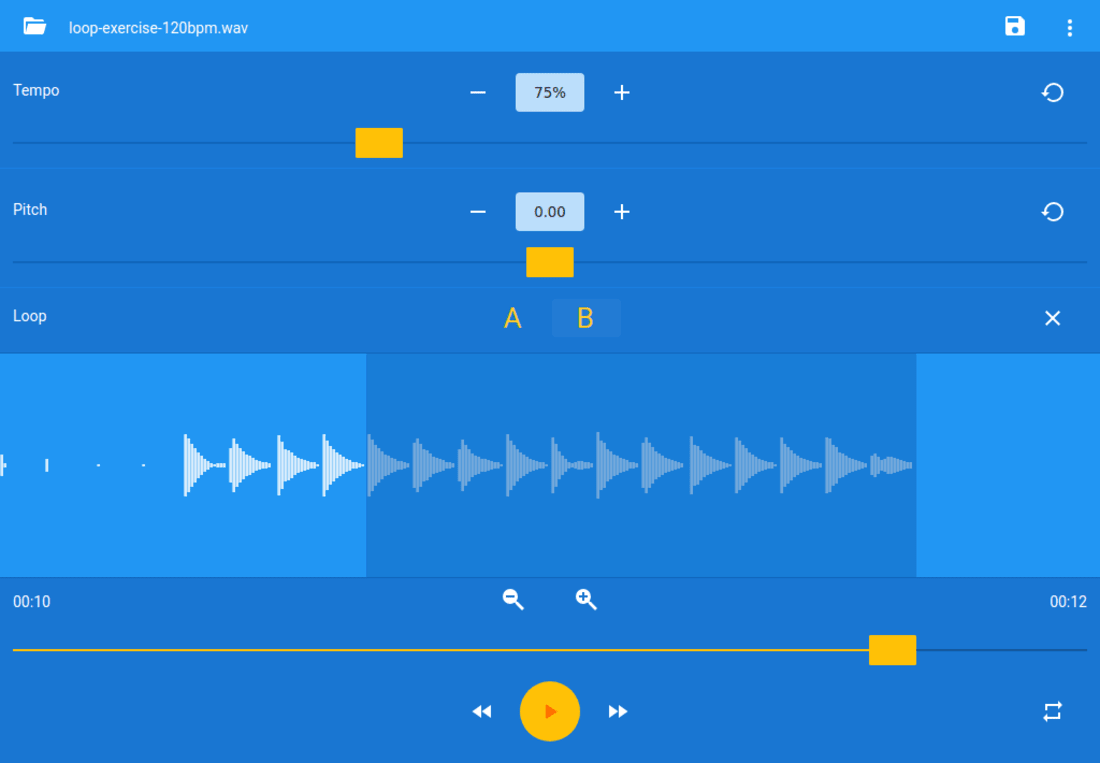
This waveform is taken from the supplied exercise. The marked region includes one bar of preparation followed by the two bars being studied.
With playback paused, move the position slider to about 00:04 and press A. Move to about 00:10 and press B. The shaded region confirms the loop. Play through its end and check that it returns to A. In our test, it did. The separate repeat-track control is for repeating the whole recording; it is not how you define these two boundaries.
You can refine the boundaries after hearing the join. Avoid cutting through a sustained note or a pickup belonging to the phrase. In this exercise, the notes end just before each next beat, which leaves a clear boundary. A real performance with pedal or room reverberation may need a little extra space.
Use 75% tempo, with pitch still at zero
Click the number under Tempo, enter 75 and press Enter. Leave Pitch at 0.00. For a recording with a steady original pulse of 120 BPM, the resulting target is 90 BPM:
That means 75% of the original speed, or a 25% reduction. It does not mean “75% slower.” If the source performance speeds up and slows down expressively, this percentage scales those changes too; it does not quantise the performance onto a fixed click.
Here is the actual web-app setup with the exercise loaded. Both the tempo value and the unchanged pitch setting are visible above the A–B region.
If you deliberately need another key, adjust Pitch separately. Our third download uses +2.00 semitones with tempo still at 75%. Its opening A becomes B. Use that setting only when transposition is part of the task; reset it to zero before practising against the original-pitch score or instrument.
Very large slowdowns can change attacks and sustain in ways that make the recording less useful as a sound model. Use the slower version to clarify the event, then listen again at 100% for the phrase and tone. The broader question of what to borrow from a recording remains separate from operating the controls.
Check what the Save button actually exports
Press the disk-shaped Save button at the top right. In our browser test it downloaded an MP3 with the pitch and tempo settings in its filename. It saved the whole track, even while an A–B loop was selected. The 12-second original became approximately 16 seconds at 75% speed. Do not assume that setting a playback loop also crops the download.
Open the saved file in an ordinary player. Check that the count-in is still there, the melody is slower and the final bars have not been cut off. Comparing the opening tone in the original and zero-shift export also confirmed that its pitch stayed near 440 Hz. That checks this example, not every possible source file or extreme tempo setting.
For a standalone excerpt rather than the whole file, use an editor that supports selecting and exporting a region. Audacity’s documented Change Tempo workflow is a desktop alternative: select the audio, choose Effect → Pitch and Tempo → Change Tempo, and enter −25% to reach 75% speed. Its similarly named Change Speed and Pitch changes both together. These Audacity steps are documentation-based; the downloadable results above came from the browser test.
Keep the original file unchanged. Give each practice copy a useful name, such as phrase-bars-3-4_90bpm_original-key.mp3, and note whether the count-in or preceding bar is included.
Before closing, leave yourself one specific task for the next session:
Further reading
 Gear
GearAudio Interfaces for Recording a Digital Piano in Stereo
Compare three audio interfaces for recording a digital piano in stereo, with clear wiring, headphone monitoring, iPad power and a complete cable budget.
11 min read Practice Methods
How to Learn From Recordings Without Just Copying Them
Recordings can sharpen taste, structure, and sound choices, but they become a problem when they replace your own thinking. This guide shows musicians how to compare performances, borrow usefully, and keep interpretation alive.
12 min read Gear
GearPortable Recorders for Ensemble Rehearsals: Mics, Inputs and Placement
Compare three portable recorders for ensemble rehearsals, then find a position that captures the whole group. Includes a room plan and setup checklist.
7 min read