A piano teacher needs to see the students they teach. A department head may need to review several piano studios, while the school administrator needs to work across piano, strings and the rest of the institution. Buying software means checking whether those differences survive opening a student record, changing a programme and downloading a file.
In our test, Practis enforced the expected student boundaries for the requests we checked. We also found misleading edit controls for a read-only department head, and an export that did not follow the filter on the screen. Those details matter more than a list of role names.
We tested our own product's current code on 7 November 2026, using three staff identities and invented records in an isolated environment. The real permission logic, request handlers and interface ran against a substitute data store; sign-in and the real database were not tested. These are reproducible checks of that code version, not a test of live school accounts or a security certification.
Featured photograph: Pavel Danilyuk / Pexels. General teaching photograph; the people pictured are unrelated to the fictional test records.
Three staff roles, two departments
The test school has a Piano department and a Strings department. Tess teaches Ari Vale in Piano. Bea Moss is also in Piano, but studies with another teacher. Cora Reed belongs to Strings. Each student has a programme entry, an assignment, a lesson recap, repertoire and a practice record, so an empty screen cannot pass merely because there was nothing to find.
We gave the administrator access across the school. The Piano department head could review Piano students but could not edit their records. Tess's teaching scope contained Ari alone. A fourth student, Dara Lake, belonged to a separate school and served as an extra check on the institution boundary.
That arrangement tests a distinction schools can easily miss: another teacher in the same department is still another teacher. Tess should be able to prepare Ari's lesson without gaining Bea's teaching record just because they both study piano.
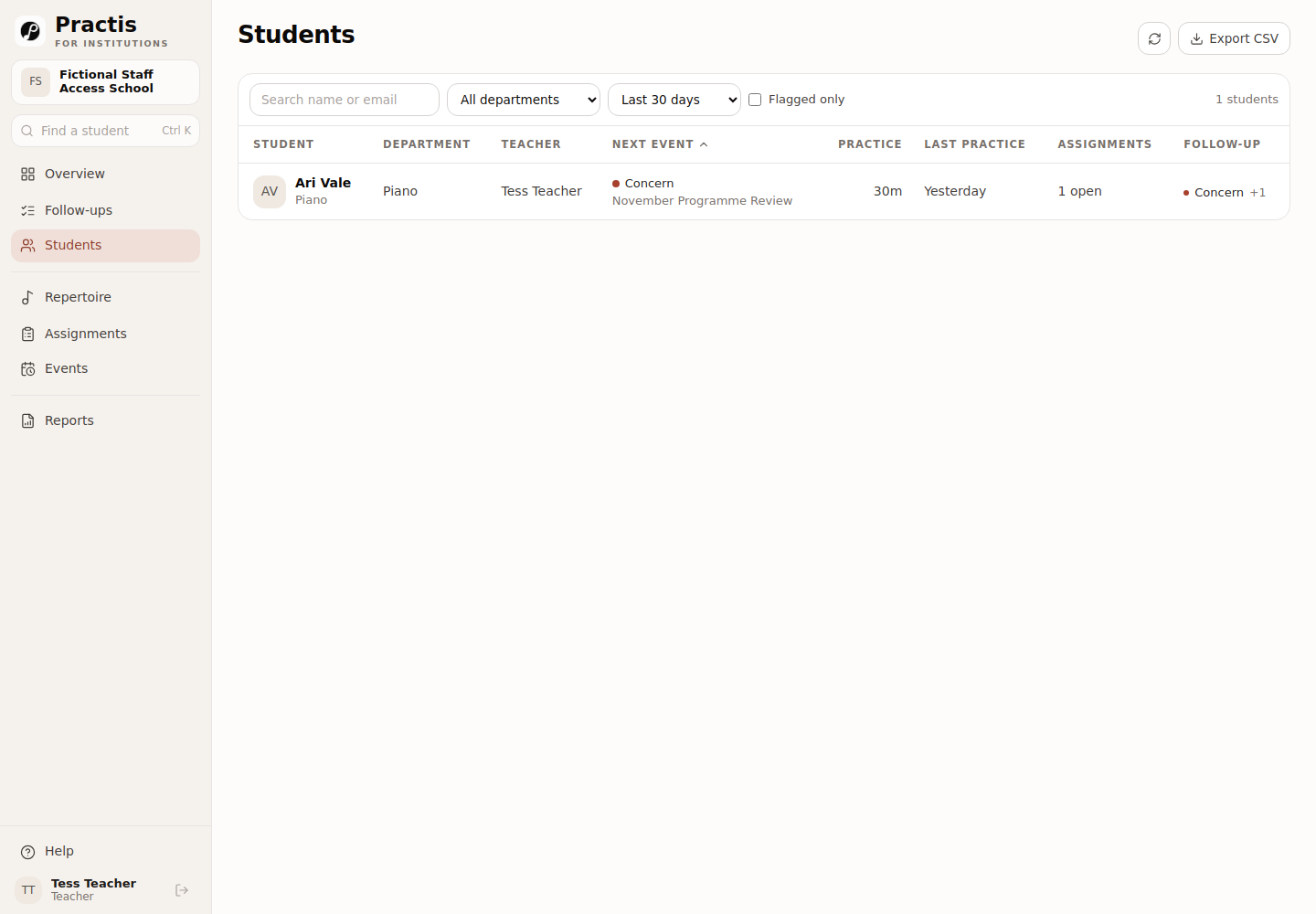
The head's roster contained Ari and Bea. The administrator's contained all three school students. We then requested the other student records directly, rather than relying only on which names happened to appear in the list. Tess could not open Bea's or Cora's profile, programme or report; the head could not open Cora's. Dara's separate-school records were unavailable to all three.
The eight checks and what happened
“Allowed” below means the named request returned the expected fictional record or saved the permitted change. “Denied” means the request was rejected and, for edits, the stored record stayed unchanged. The interface result is called out separately where it differed from that server decision.
| Check | Administrator | Piano department head | Tess, teacher |
|---|---|---|---|
| 1. Ari: own student | View allowed | View allowed | View allowed |
| 2. Bea: another studio in Piano | View allowed | View allowed | Denied |
| 3. Cora: another department | View allowed | Denied | Denied |
| 4. Roster filtered to Strings | Cora only | Strings absent from the menu; a direct Strings request retains Piano scope | No students |
| 5. Programme approval and readiness edits | Allowed within school | Denied by server; misleading edit controls remain visible | Allowed for Ari; denied for Bea and Cora |
| 6. Generated follow-ups | View and edit within school | View within Piano; no edit controls | View and edit for Ari only |
| 7. Four CSV export types | Ari, Bea and Cora | Ari and Bea | Ari only |
| 8. Printable Ari report | Allowed; notes optional | Allowed; notes optional | Allowed; notes optional |
Results from the isolated test of 7 November 2026. View checks covered student profiles, programmes, follow-up detail and reports. CSV checks covered students, practice, assignments and repertoire. Swipe sideways on a phone. Download the completed matrix (CSV).
The filter row has an important nuance. When a department head's request named Strings, the application kept the head within Piano rather than granting Strings access or returning a blank list. Changing a teacher identifier in a request likewise did not give Tess another studio. A filter can change what is displayed inside a permitted scope; it should not create a new permission.
The department-head screen offered an edit it could not save
On the event board, the department head could see the same Ready, Developing and Concern buttons as an editor. We clicked Ready for Ari. The request was refused, the stored verdict remained Concern, and the board reloaded that original verdict. The student boundary held, but the button gave the wrong impression about what this role could do.
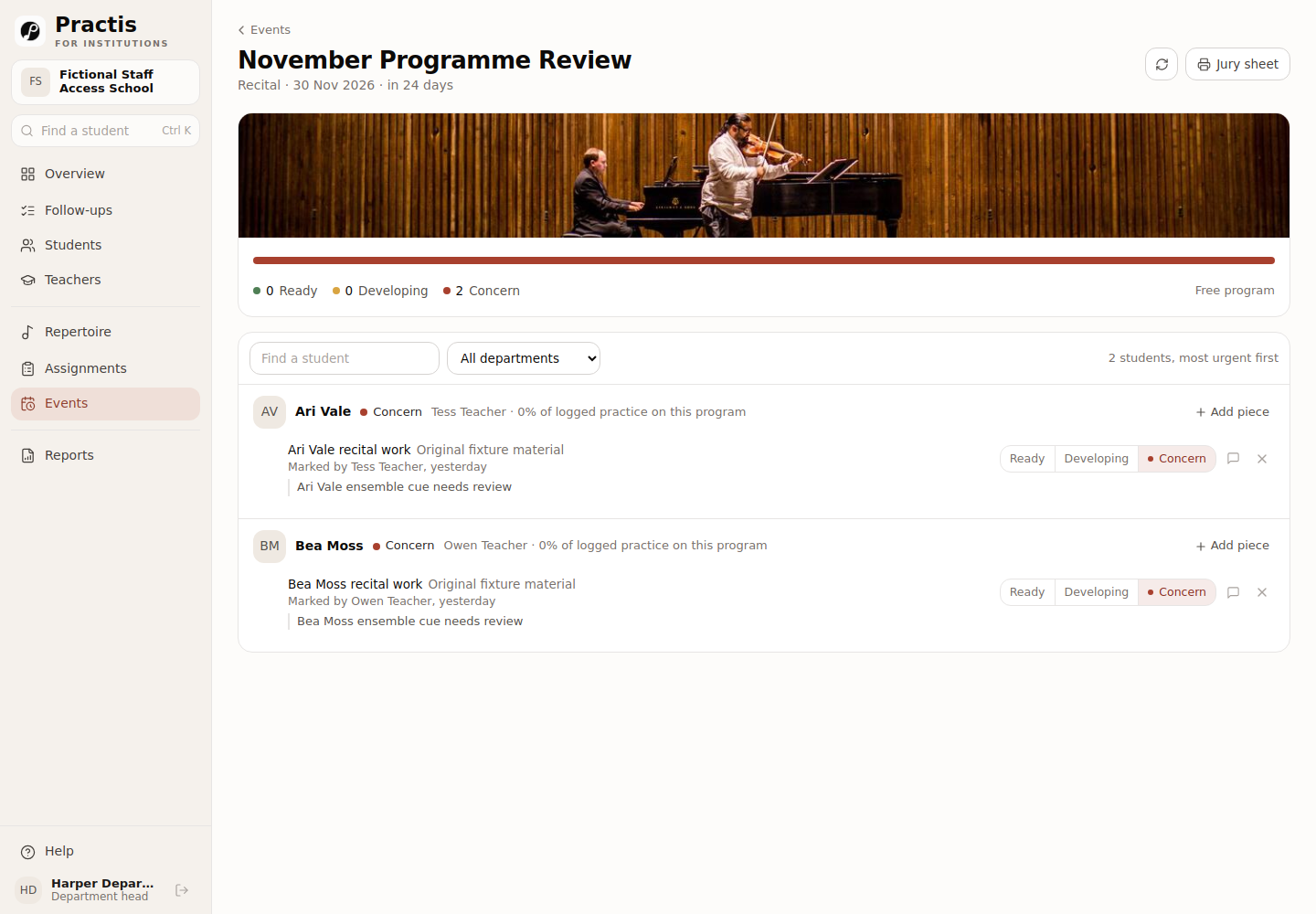
The note control exposed a more confusing version of the problem. We changed the short verdict explanation and pressed Save. Again, the server refused the edit and the original note stayed in the record. The new text nevertheless remained on that browser's screen until we reloaded the page, when the original note returned.
Our result for this check: the permission boundary passed; the department-head interface failed. A refused change should not leave staff believing that a new assessment or explanation has been saved. This behaviour remained in the version tested.
This is why checking a screen and checking the saved record belong together. OWASP’s authorization guidance says permission enforcement must happen on the server; hiding or disabling a control is not enough. The interface still owes the member of staff an accurate account of what happened.
The follow-up panel behaved differently. For the department head, it displayed the issue, owner and status as read-only information. It did not offer the editing controls. The administrator and Tess could put an existing generated issue into review within their permitted student scopes. Both issues came from existing records: a stuck assignment and a programme marked Concern.
For the teaching decisions behind those actions, our student follow-up post shows how staff can assign an owner, agree the next step and decide when an issue has been resolved. Here the question is narrower: whether the person making that change is permitted to make it.
The file contained more students than the filtered screen
As administrator, we selected Strings in the roster. The screen showed Cora and nobody else. We then clicked Export CSV from that same page.
The downloaded student file contained Ari, Bea and Cora. It respected the administrator's institution-wide access, but it did not carry the screen's department filter into the export. That distinction matters if the administrator assumes the file is ready to send to a Strings colleague.
We repeated the export checks under the other roles. The head's files contained only Ari and Bea; Tess's files contained only Ari. This held for the student list, practice, assignments and repertoire exports. A direct request for a Strings-filtered file narrowed the administrator's results to Cora and gave Tess no students. The head's foreign-department request stayed within Piano.
For a school evaluating software, there are therefore two useful questions: does the export stay within the staff member's permission, and does it contain the records that the member of staff intended to send? A file can pass the first and still need editing before it is appropriate for its recipient.
Open the downloaded file during the demonstration. Check the student names and the columns, including whether email addresses, practice totals or assignment detail are necessary for the intended use. Ask the supplier to repeat the same action after changing department or teacher scope. A screenshot of a filtered list does not establish what the download contains.
Lesson notes were hidden by default, but permitted staff could include them
The printable student report offers an Include lesson notes checkbox. It starts unchecked, and the screen asks staff to review the draft before sharing. We generated Ari's report for November with that default, then generated it again after checking the box.
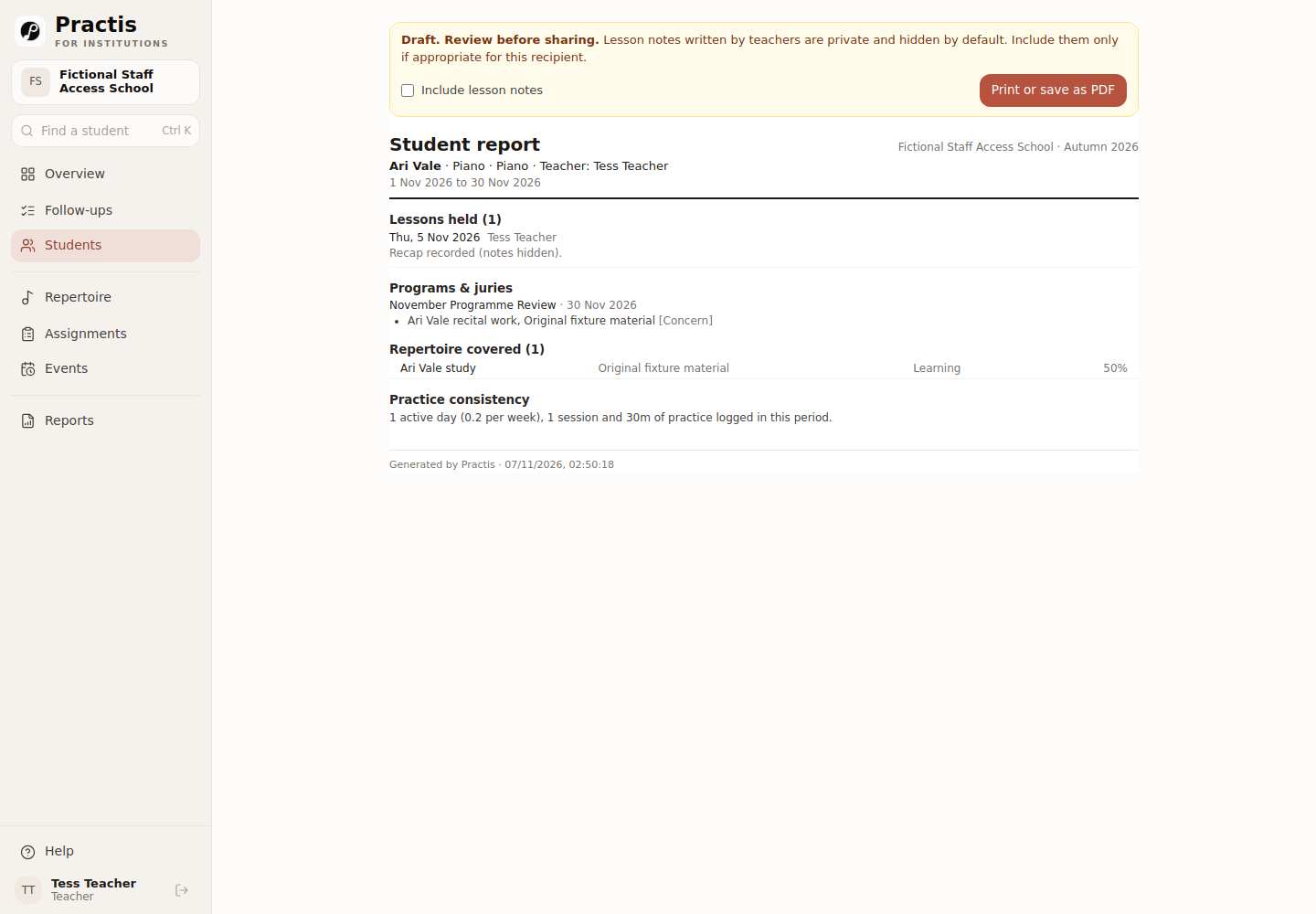
The default PDF said that a recap had been recorded and kept its text out. The second PDF included Ari's recap. We checked both versions for all three staff roles, including the resulting printed content: no other student's record appeared.
That default is a choice about report contents, not a prohibition on staff reading the notes. The administrator, Piano head and Tess could each deliberately include Ari's recap because Ari was already within their permitted scope. If a school needs some notes to be inaccessible to a department head, this report checkbox does not provide that restriction.
The report still needs an editorial review before it leaves the school. A teacher's private shorthand may need explanation; a lesson record does not by itself establish attendance; a logged practice total describes what was recorded. The recipient should be able to tell what changed musically and what remains to work on. Our end-of-term report examples develop that separate writing task.
Repeat the test around your school's intended access
The useful starting point is a named student and a real staff responsibility. Write down who needs to read the record, who may alter it and who may export it before a supplier shows you the product. If a visiting teacher, accompanist or temporary department head needs a different arrangement, ask about that specific case rather than assuming a familiar role label includes it.
Download the blank three-role matrix (CSV) and open it in your spreadsheet application. It contains the eight checks for administrator, department head and teacher, with separate spaces for the intended permission, visible result, saved result and downloaded records. You can use it with another supplier as well as Practis.
- Give the demonstration something to find. Use authorised test accounts or an isolated example with another studio, another department and identifiable student records. An empty department proves very little.
- Repeat the same task under each role. Open the same student context, attempt an appropriate test edit and reload. Ask the supplier or your authorised technical reviewer to check the underlying request as well as the visible controls.
- Read the actual output. Download the CSV, inspect the student list and review the printable report with and without optional notes. Record a misleading control separately from an unauthorized change.
- Keep unresolved findings attached to the decision. Agree who will address them and what repeat check would demonstrate the fix. A promising demonstration does not make a failed check disappear.
The same approach helps when the school is choosing how to divide work between systems. Our Practis and My Music Staff comparison considers that division; each system still needs its own permissions and export check.
To examine Practis for your institution, arrange a walkthrough around these three staff roles. Bring one example of a student record that should be shared and another that should remain outside a teacher's scope, then ask to see the resulting screen, saved change and file.