

MuseScore Studio can now send PDFs, recordings and supported links for score conversion from inside the desktop app. The 4.7.6 release, published on 26 October 2026, connects these options to MuseScore.com. The useful question is which source gets you closest to the score you need, and how you will check the result before putting it on the music stand.
A printed page and a recording contain different information. A PDF can show a repeat sign, a fingering and an exact spelling of a note; audio gives you what sounded over time. The same piece can therefore lead to different-looking notation without every difference being an error.
Featured photograph: cottonbro studio / Pexels.
Choose the source before choosing Convert
If you already have an editable MuseScore or MusicXML file, open that instead. There is no advantage in exporting it to a picture or audio file just to ask another process to reconstruct the notes. The handbook lists the editable formats Studio can open, including MusicXML and MIDI.
MusicXML is particularly useful when moving a score from another notation program. It carries musical structure, although the MuseScore handbook explains that layout cleanup may still be necessary. If your starting point is a MIDI performance, our separate MIDI-to-notation example covers that route.
For the new converter, choose according to what you actually have:
| Source | What you are asking it to interpret | Keep beside the result |
|---|---|---|
| PDF, scan or photo | The notation visible on the page. | The original pages, in the correct order. |
| Audio file, currently beta | Sound unfolding through time. | The original recording, including its beginning. |
| YouTube or Audio.com link, currently beta | The linked recording. | The exact permitted source link and version. |
Suppose you wrote a melody, printed it, then recorded yourself playing it with several pauses. The clean PDF is the clearer reference for your intended written rhythm. If you are instead trying to preserve an improvised melody that was never notated, the recording is the source you have. The task is different, even when the Convert button is the same.
What the current converter requires
You need the desktop app, an internet connection, a MuseScore.com account and music you are entitled to submit. This guide concerns the 4.7.6 converter; it follows published documentation and uses an original musical example below, rather than reporting a conversion accuracy test.
The release announcement describes conversion as free, with an introductory allowance of 200 scores in total per account. That is not a daily or monthly allowance. The announcement, checked on 10 November, says the limit will be reviewed after the first month; check the current allowance shown to your account before a large project.
Start with a short file you can inspect completely. Keep its original untouched and use a clear filename, such as chorus-melody-source.pdf. Follow the file types and size limits shown in your Convert window; the service can change those limits independently of a blog post.
For permissions, follow MuseScore’s stated rules for submitted music. A public YouTube link is not by itself permission to convert the recording. An old composition can also have a modern protected arrangement or performance. The original example below avoids that complication and is available for you to try.
Where to start the conversion
In Studio 4.7.6, open Home → Scores → Convert, or choose File → Convert. Sign in to MuseScore.com when prompted, choose the relevant file or supported link, and follow the conversion prompts. For a link, paste with Ctrl+V on Windows or Linux, or Cmd+V on macOS.
The app notifies you when a score is ready to open. Converted scores are described as private in your account until you choose to publish them. Opening the result for your own work and publishing it for others are separate decisions.
Once the result opens, save an untouched copy before correcting it. Use Save As or Save a copy as appropriate; the handbook explains both commands. Give the editing copy a different name. That lets you undo a doubtful correction or compare the original conversion with your finished score.
Eight written bars can become twelve played bars
Here is Courtyard Study, an original eight-bar example prepared for this guide. It includes a repeated opening, two different accidentals in one bar, a tie across a barline and a silence shared by both hands. This is the source score, not output from the MuseScore converter.
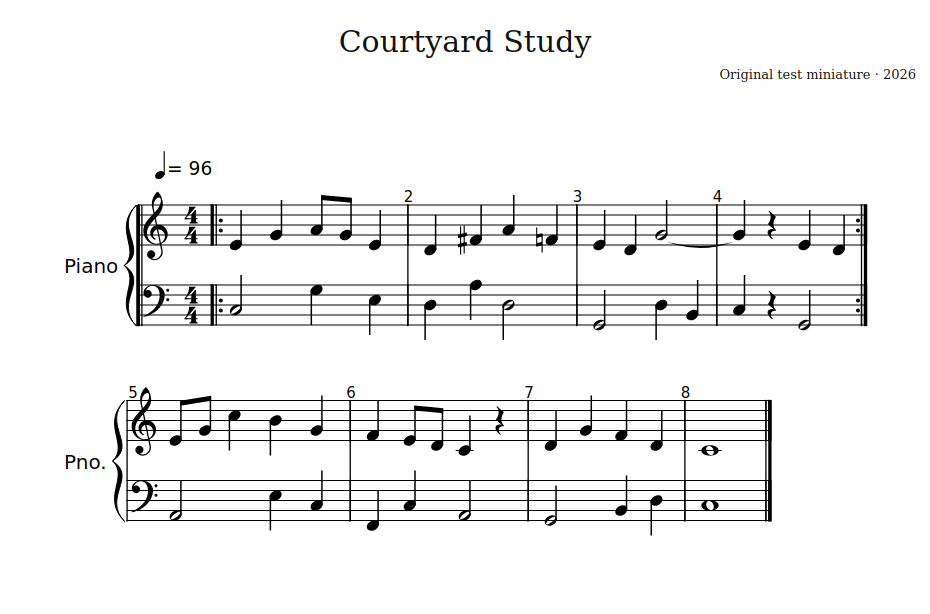
The audio follows the repeat: bars 1–4, bars 1–4 again, then bars 5–8. That produces twelve played bars. At the marked tempo it takes thirty seconds, with a short silent tail added to the file.
Open the one-page source PDF · Download the source MusicXML
You may use these original example files for your own conversion experiments. The MusicXML already contains editable notation, so open it directly when you want to inspect the source rather than test recognition.
If an audio transcription writes out all twelve bars, the length alone does not make it wrong. The recording contains both passes through the opening. By contrast, a faithful recognition of the printed page should account for the written repeat. Decide whether you need the original page structure or an unfolded version that follows the recording from beginning to end.
The tie offers another useful distinction. The G in bar 3 continues into bar 4 as one sustained sound. There are two printed noteheads, but no new attack at the start of bar 4. Counting noteheads in the PDF against detected sounds in audio would compare different things.
Check the music before tidying the page
A score can be neatly spaced and still contain a wrong note. Start with the musical events, then work on readability. For the original example, these are concrete places to inspect:
- Bar 2, right hand: F-sharp on beat 2 is followed by F-natural on beat 4. Check both the pitches and their written accidentals.
- Bars 3–4: the tied G lasts three quarter-note beats in total. Check whether the result sustains the sound or wrongly starts it again.
- Bar 4, beat 2: both hands rest. The silence belongs in the music; it should not be filled just to make the line look continuous.
- The repeat: identify which written bar corresponds to each point in the recording before comparing lengths.
These are checks you can make, not errors we observed in converted output. For your own music, choose similarly identifiable moments: an accidental, a rest, the entrance of another voice and a repeated section. If you cannot establish what a passage should contain, leave it marked for further checking rather than silently guessing.
After pitches and timing, look at which staff or voice contains each note, whether the bar divisions make sense and whether the result is comfortable to read. Keep those questions separate. A note on an awkward staff can need editing even when its pitch is correct.
When the music is settled, export a reading copy through File → Export → PDF, following the export instructions. Keep the editable score as well. Our post on making a readable practice score in MuseScore covers spacing and layout without making you repeat the recognition work.
Choose one passage you actually need
For a first attempt, a short chorus, a few bars of your own melody or one clean page is enough. You want to learn whether the resulting notation saves work on that material, including the corrections it needs. A successful file upload alone does not answer that.
If a recording is all you have, keep it beside the score while you check. Our post on slowing a recording without changing its pitch can help you revisit a difficult moment. Finish with a passage you can trust and read comfortably before converting the rest of the project.


