
Make a Readable Practice Score in MuseScore: Size, Breaks and Markings
Make a readable practice score in MuseScore with larger staves, useful line breaks and rehearsal marks. Download our before-and-after PDFs and source files.
Mia
Community & Content. Writer and lifelong pianist. Writes about gear, production, and the business side of making music.
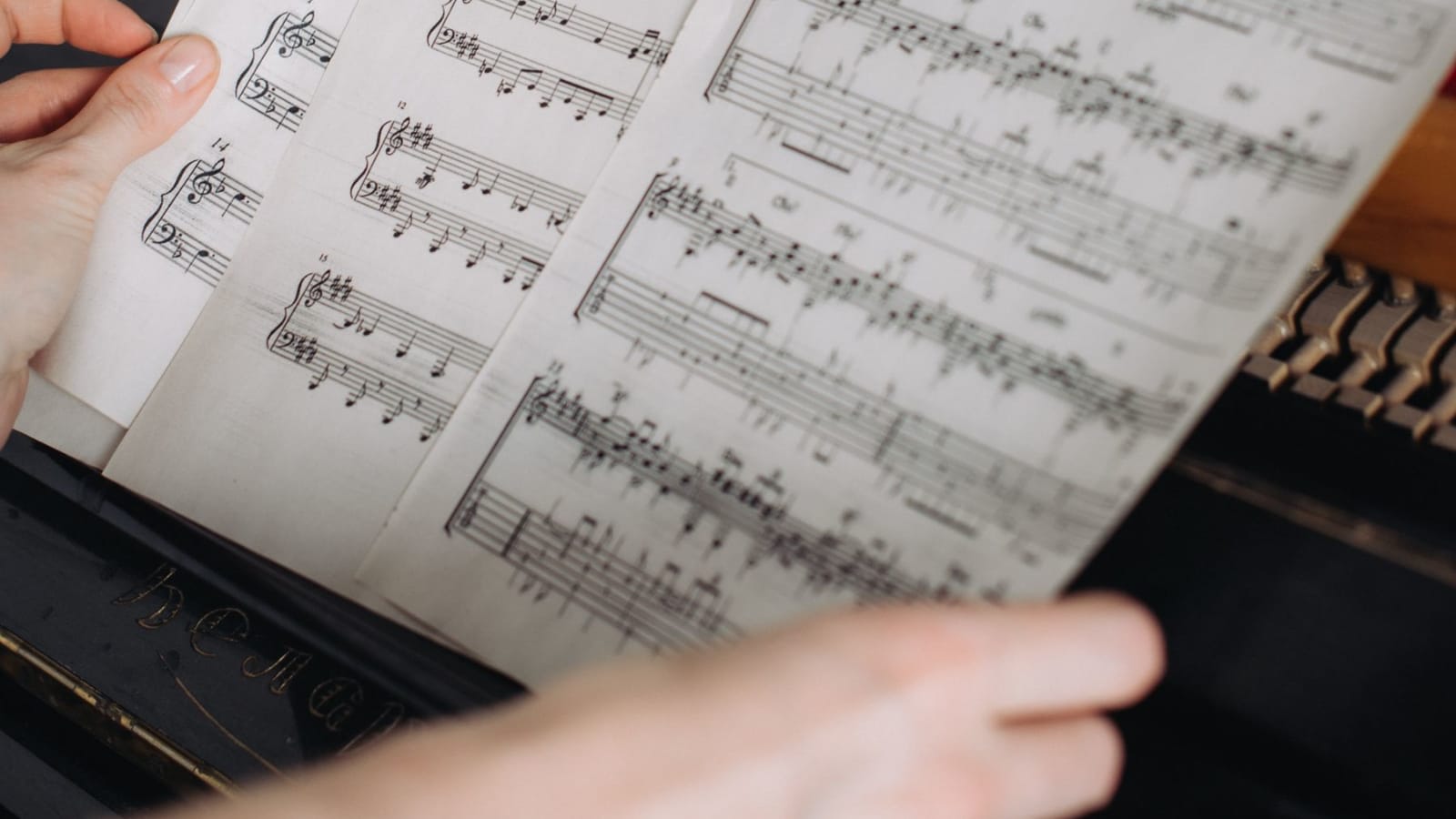
A score can contain the right notes and still be awkward to practise from. Small staves, an isolated pair of bars on a line and too many annotations all make it harder to find your place. MuseScore Studio lets you change that layout before making the PDF you will actually read at the instrument.
Set the page and staff size first, then place breaks and add a few useful marks. Our worked example turns a small, unevenly spaced 16-bar piano score into four larger four-bar systems, with rehearsal letters A–D.
Required: the free desktop MuseScore Studio editor, a mouse or trackpad, and an editable score whose notes you have already checked. We rendered the supplied files in version 4.7.5 on Linux on 25 September 2026; the menu instructions follow its current handbook. Windows and macOS editions are also available. No MuseScore.com subscription or paid export tier is needed for this example.
Start with an editable score, not a photograph
We made Four Short Phrases for this demonstration. You may copy, adapt and share the exercise. The starting version deliberately uses small staff spacing and a break after bar 8; it is not a claim that MuseScore normally produces a poor layout.
Unzip the pack and open compact.mscz in MuseScore Studio to reproduce our starting layout. Use File → Save As to create your own working copy before editing. The included MusicXML files are useful for importing into another editor, but that editor may lay them out differently.
If your starting point is a scan, the notes need to become editable first. Our PDF-to-MusicXML walkthrough covers recognition and correction. Enlarging a photograph in a PDF viewer does not give MuseScore separate notes and measures to rearrange.
Here are the two actual PDF exports. Open either PDF above to compare them at full size.


Choose the page before increasing the staff size
Open Format → Page settings. For this example, use A4 portrait with 15 mm margins. Select the paper you will really print on; a later “fit to page” adjustment can shrink the music again. A tablet-only copy can use another page shape, but check it in the intended reader.
Increase Staff space from 1.4 mm to 2.1 mm. This measures the gap between adjacent staff lines. A five-line staff has four such gaps, so the full staff grows from 5.6 mm to 8.4 mm. That is a 50% increase in this example, with many notation elements scaling along with it. The page-size and spacing guide explains the setting.
Do not judge only from a zoomed-in editor view. Put the exported page on the music stand or open it on your tablet at its normal reading size. A larger staff can justify another page if it makes accidentals and ledger lines easier to distinguish from where you sit.
Our example also disables vertical justification in Format → Style → Spacing. This keeps the two piano staves from being spread merely to fill unused page space. The saved styles retain minimum system distance 8.5 staff spaces and maximum 15. You do not need to change every spacing control to improve a short score.
Give each phrase a useful place on the page
After changing staff size, look again at the bars in each system. In the compact export, the automatic fit and the inherited break produced groups of 6, 2, 6 and 2 bars. The practice copy uses four bars on every line, matching this exercise’s four short phrases.
Starting system layout
Practice system layout
Select bar 4 and use the System break icon in the Layout palette. Repeat at bars 8 and 12; an existing break at bar 8 can stay. The shortcut is Enter when a measure or a non-text item is selected. A selected text item responds differently, so the palette is the clearer route while learning. See the system-break instructions.
Four bars per line is useful for this exercise, not a rule for every piece. A dense bar of small notes may need more width, and a phrase may cross the barline. Let the music and the available space guide the break. If the score contains system locks, remove the relevant locks before expecting the music to reflow; forcing more bars into a locked line can make it crowded.
Add a rehearsal letter by selecting the first note of bar 1, choosing Add → Text → Rehearsal Mark, and entering A. Add B at bar 5, C at bar 9 and D at bar 13. The rehearsal-mark guide also describes automatic sequencing. These letters give a teacher or practice note an unambiguous location: “B, second bar” is easier to find than “the similar bit halfway down.”
The final copy adds just one fingering: a right-hand 1 on the opening C. Select that note and use Add → Text → Fingering. Fingering is its own notation element, so it stays associated with the note. Treat the supplied number as an example, not a prescription for every hand; add numbers where they resolve a real choice.
Leave space for later markings. If a rehearsal letter collides with another item, keep automatic placement enabled and check the surrounding spacing before dragging several objects apart. For an isolated vertical gap, MuseScore’s staff spacers can add room without changing the entire score.
Check the PDF you will use at the instrument
Save the native project, then choose File → Export, select PDF, and export the intended score or part. Those are separate outputs: the MSCZ remains editable in MuseScore, while the PDF carries the laid-out page to a reader or printer. The export guide explains the available formats.
Our two PDFs each have one A4 page. Re-exporting the projects to MusicXML confirmed that all 160 note events kept the same pitch, duration, staff, voice and bar. The changes are layout, rehearsal letters and the single fingering; none of the notes was transposed or shortened to make the page fit.
At reading distance, check: the smallest accidental or ledger line, every system start, the final barline, and any place where a fingering meets a slur or other mark. For a longer piece, check page turns with both hands occupied.
You can use the resulting PDF in our Practis Score reader for practice. Layout changes still belong in MuseScore; an exported PDF is not the editable MuseScore project.
Name the new PDF clearly, such as four-short-phrases_practice-v02.pdf. If another player or teacher already has the old copy, follow a simple score revision handoff so both of you are looking at the same page.
Further reading
 Practice Tools
Transpose a Scanned Score: PDF to MusicXML, Step by Step
Transpose a scanned score with a worked PDF-to-MusicXML example: see the recognition errors, correct the notes and download the finished score in A.
10 min read Apps
AppsShare Annotated Sheet Music Without Losing the Latest Version
Share annotated sheet music with a clear revision trail: conductor marks, private notes, Newzik layers and a downloadable PDF handoff example.
7 min read Tools
ToolsHow to Download the Right Piano Edition from IMSLP
Download a usable piano score from IMSLP: compare editions, check territory notices and inspect every page, with a worked Für Elise example.
7 min read