You have a PDF of a piece, but need it in another key. The useful route is to recognize the printed music, export an editable MusicXML file, correct the result and transpose it in a notation editor. The proofreading matters: a missing note will still be missing after every other note has moved.
Here is that process with one complete score. We converted the Minuet in G, BWV Anh. 114, attributed to Christian Petzold, into an editable score and moved it up a whole tone to A major. The downloadable example pack includes the input PDF, the uncorrected recognition result and the finished files.
The page we are going to transpose
We used Allen Garvin’s one-page Mutopia edition. It contains 32 bars in 3/4, with two keyboard staves, repeats, ornaments and a few passages with independent left-hand voices. That gives us several details to check without turning the exercise into a large orchestral editing job.
The edition is public domain, so you can use the supplied files to follow along. Our starting file is a 300 dpi grayscale, image-only copy of its typeset PDF. We did not test a phone camera or physical scanner. The page is clean and square, which makes this a relatively favorable recognition example; a curved book page or faint photocopy may require considerably more repair.
We ran this example on 15 September 2026 with Audiveris 5.11.0 and MuseScore Studio 4.7.5. Recognition, transposition and export were run through their command-line tools; we applied the corrections directly to the intermediate MusicXML. The desktop menu directions below provide another way to carry out the workflow.
Have the original page open beside the editable score. You need to be able to compare a note’s position, its duration and the other notes sounding with it. Familiarity with the tune helps, but memory can easily supply an ornament that the software has omitted.
Recognize the PDF and export MusicXML
In Audiveris, open the input through File → Input, then use Book → Transcribe book. For this example there is only one page. Wait for processing to finish before exporting. Our batch run used the default recognition settings and produced a piano part with two staves and all 32 musical bars.
Keep an Audiveris project with Book → Save book, then use Book → Export book to create the .mxl file. Audiveris’s export guide explains the distinction: the .omr project preserves its recognition work, while .mxl is compressed MusicXML for another music application.
Open the .mxl in MuseScore Studio. You should now be able to select individual notes. At this point, save a separate working copy so that the original recognition export remains available for comparison. In our pack, file 02 is the untouched output and file 03 is the corrected MusicXML.
The imported page may have different spacing or untidy text. Our first export put the two attribution lines on top of each other and treated some printed page text as separate credits. We cleaned that up, but checked the music before spending time on presentation.
This article follows one route through two applications. If you already have a different recognition tool, our sheet-music scanner guide explains the alternatives and their export options. The corrected MusicXML is the handoff point to look for.
Correct the score while it is still in G major
Check the source key first: one sharp, F♯, on both staves. Then work through the bars in order. Most of this conversion was usable. The main-note pitches, written accidentals and repeat signs survived; the corrections below concern a small missing note and the organization of two bars.
Bar 8: restore the missing grace note
The original has a small B immediately before the right hand’s dotted-half A. Audiveris omitted the B completely. The bar still contained three beats and looked tidy, so checking bar lengths alone would not have found this omission.
Proofing desk · bar 8, still in G major
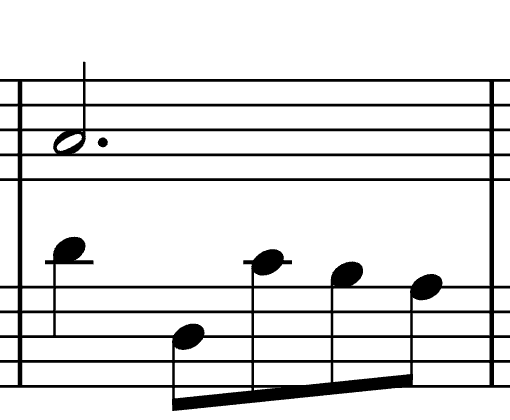

To make that repair in MuseScore’s interface, select the dotted-half A and add the unslashed eighth-note symbol from the Grace notes palette. Set its pitch to B in the same octave as the A. The source shows no slash through its stem.
A normal eighth note would change the rhythmic contents of the bar. A grace note is attached to its main note and does not add to the written measure duration. Keep that distinction when entering the missing symbol.
Bars 25 and 26: separate the right-hand melody from the bass voices
These bars needed a less visible correction. In bar 25, the right hand plays D, then G–F♯–G. Underneath it, the left hand has a lower B lasting two beats and another B on beat three. A separate upper bass voice rests for one beat, then holds D for two beats.
Audiveris gave the high opening D and the held bass D the same voice, crossing from one staff to the other. It put the rest and the remainder of the melody in another treble voice. The notes retained their pitches and starting positions, and the displaced rest could appear close to the correct location. The musical structure was nevertheless awkward to edit.
We rebuilt the right-hand phrase as one continuous treble voice. On the bass staff, the upper voice contains the quarter rest followed by the half-note D; the lower voice contains the half-note B followed by the quarter-note B. Bar 26 has the same arrangement, with E replacing the opening and held D, and C replacing the lower B.
In a notation editor, check voice membership by selecting notes, not just by looking at stem direction. MuseScore uses selection colors to identify voices; its multiple-voice guide covers entering and moving notes between them. For these two short bars, re-entering the affected passage with the source beside you may be easier than untangling an imported cross-staff voice. Preserve the full three-beat melody and both bass lines.
We also checked the C♯ notes in the second half, the printed C natural in the bass at bar 24, all five ornament symbols and the repeat signs. Those did not need musical corrections. This is one page’s result, not an accuracy percentage for Audiveris or a guarantee about your next scan.
Transpose the complete score from G major to A major
Save the corrected G-major version before changing key. It is useful both as a reference and as the starting point if you later need a different transposition.
In MuseScore, select the whole score with Ctrl+A on Windows/Linux or Cmd+A on Mac, then open Tools → Transpose. Under chromatic transposition, choose To key, set the direction to Up and the destination to A major. Keep Transpose key signatures enabled and confirm. These settings follow the current transposition handbook.
For this score, the move is a major second: every pitch rises by two semitones. Diatonic transposition keeps the existing key signature and is a different operation. Also check that you selected both staves; moving only the melody would leave it against an untransposed accompaniment.
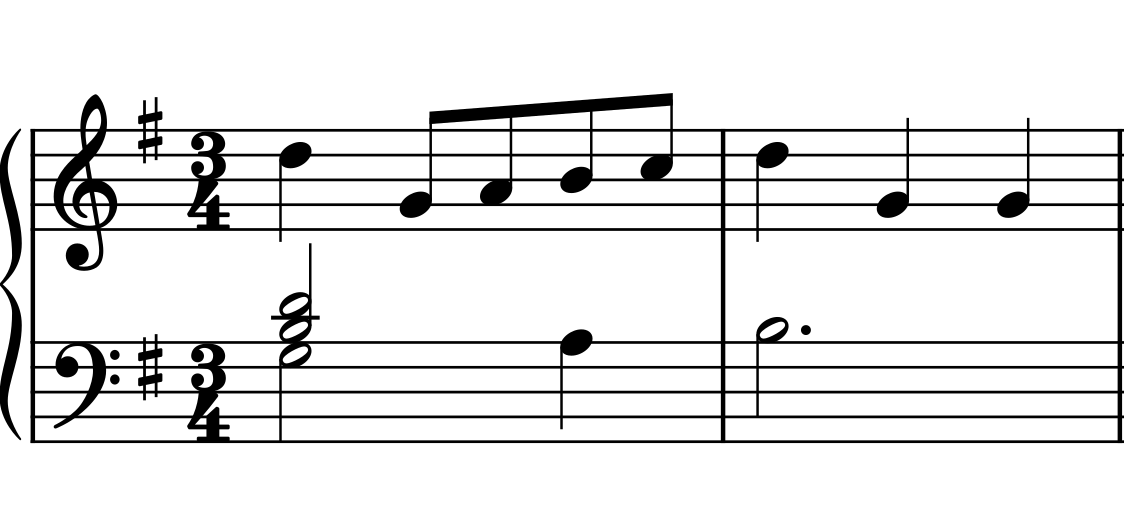
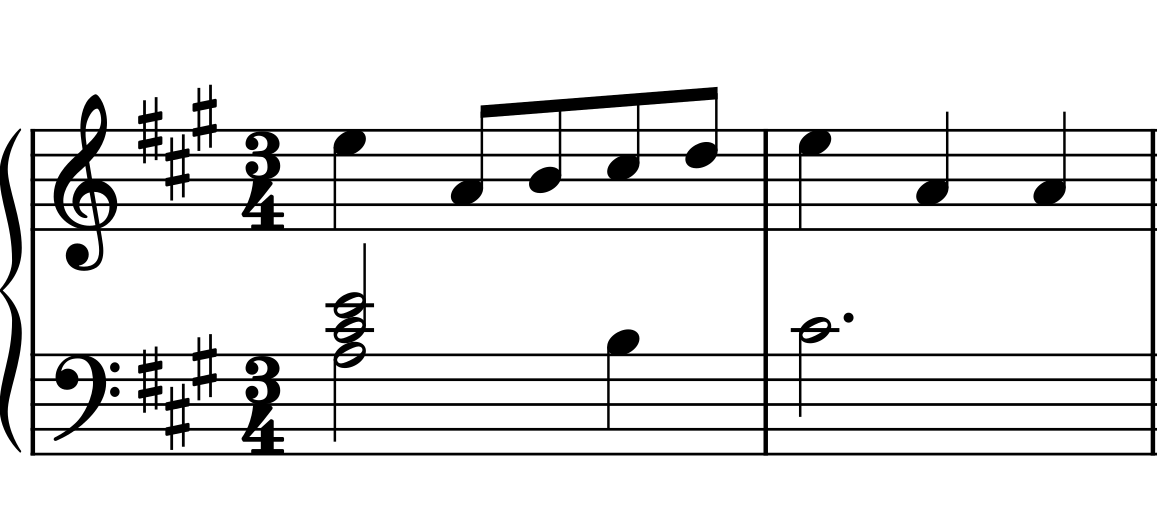
The title needs attention separately. A transposition can move the notes while leaving “Minuet in G” above them. We changed the exported version’s title to “Minuet in A” and kept its BWV identifier and attribution, so the printed page is easy to distinguish from the source.
Check the new pitches, then export the practice PDF
Before printing, compare a few notes with the corrected original. Include a written accidental and the restored grace note, as well as the opening. A major’s key signature contains F♯, C♯ and G♯, but that does not mean every altered note in the original simply becomes a note from that scale.
| Location | In G | In A |
|---|---|---|
| Opening melody note | D5 | E5 |
| Bar 8 grace note | B4 | C♯5 |
| Bar 20 opening note | C♯5 | D♯5 |
The octave numbers here use C4 for middle C. We compared all 204 pitched noteheads in the corrected and transposed files, including the grace note: each moved up exactly two semitones. Note onsets and durations stayed the same. Both versions retained 32 three-beat bars, five ornament symbols and three repeat marks.
Use File → Export and select PDF for the copy you will read or print. MuseScore’s export guide covers the available formats. Keep the editable project too, and export MusicXML if you want to open the result in another notation application.
Open the PDF itself after exporting. Check the first and last systems, the title, any crowded accidentals and the bottom margin. Our finished version fits on one A4 page. For a denser score, a second readable page is preferable to squeezing every staff down to a size you cannot comfortably read at the instrument.
The example files
Try the conversion, or open the finished score
Start with the page. The image-only PDF used for recognition.
Inspect the import. The uncorrected Audiveris MusicXML export.
Compare the results. Corrected G-major and transposed A-major MusicXML, MuseScore projects and printable PDFs.
ZIP · about 386 KB · includes a README with the method and corrections. Unzip it before opening a score in your notation app.
Keep the right version with your practice notes
Name the finished file with its key, for example minuet-a-transposed.pdf. Keep the G-major source and corrected editable files in a separate working folder. If you send the score to a teacher or another player, mention the new key in the message as well as the filename.
You can upload the finished PDF to your piece in Practis and keep session notes about the passages you are learning. Recognition, correction and transposition in this example happen in Audiveris and MuseScore; Practis is where the resulting practice score and your ongoing work can meet.
A useful first note might be: “A-major version, bar 20: read the D♯ before playing the phrase again.” Our guide to what to write down after practice has more examples of passage-specific reminders. Once the new copy is in use, keep those musical observations separate from your conversion checklist, so the next session starts with the playing you want to work on.
Score examples from the Mutopia edition by Allen Garvin, re-engraved in MuseScore Studio. Featured photograph: César Guillotel / Pexels.