You open the score, play for twenty minutes, then return to a timer that looks as though it has barely moved. Before changing battery settings, find out what actually stopped: the displayed clock, the metronome, the recording, or the saving of the session. Those are different jobs, and a fix for one may do nothing for the others.
The useful answer to “does it keep running with the screen off?” depends on the app, phone and task. This guide explains the platform rules and how to check your own setup; it is not a comparison of measured results on physical phones.
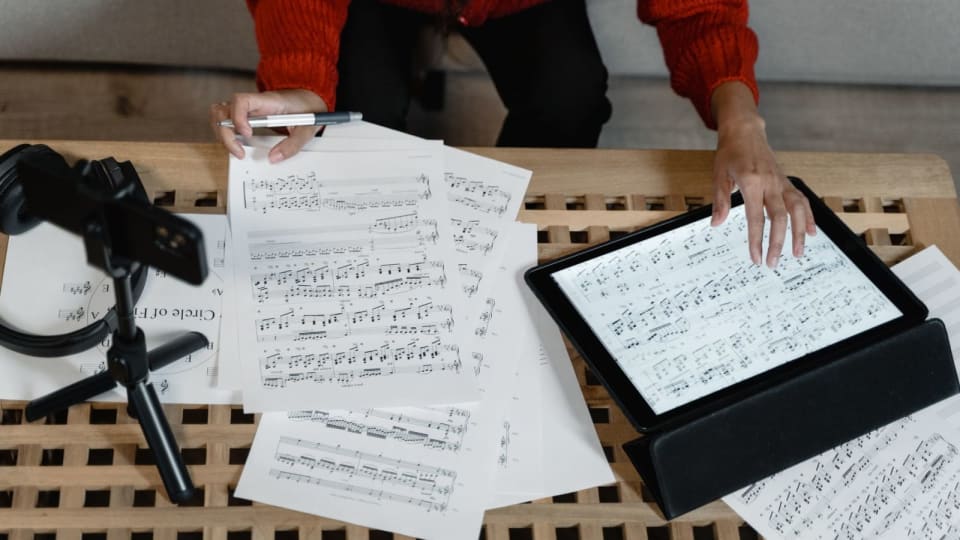
Photograph: Ivan Samkov / Pexels.
First, identify what stopped
A practice app can contain a stopwatch, metronome, recorder and diary on the same screen. That makes them convenient to use together, but it can hide the distinction between them. Start with the symptom you can actually observe.
| What you notice | What to check next |
|---|---|
| The displayed time jumps forward when you reopen the app. | Compare the final total with a separate clock. The display may have stopped updating while the app still retained its starting time. |
| The total is too short, or the timer has reset. | Check whether you paused it, left that screen, reloaded a browser tab or reopened the app after it closed. These are different transitions from simply locking the screen. |
| The metronome falls silent. | Check the audio route and whether playback resumes. A correct elapsed total does not establish that the clicks continued. |
| The recording ends early or contains a gap. | Play the saved file around the interruption and check its ending. A moving clock or recording symbol alone cannot confirm that sound was captured. |
| The timer looked right, but the diary has no entry. | Check the finish/save step, the selected piece and the date. Look for an existing entry before adding a replacement. |
These are checks to make, rather than diagnoses of a particular app.
A clock can catch up without running continuously
There is more than one way to build a stopwatch. One approach counts regular updates. Another keeps a starting time and calculates the difference when it needs to show the elapsed time. In the second case, the display does not have to repaint every second for the later total to be correct.
For example: you start at 19:10, lock the phone at 19:12 and reopen it at 19:30. An app that retains the start time can calculate twenty minutes when it returns, even if you never saw the intervening numbers. That calculation alone says nothing about a metronome or microphone.
The other important question is whether the app retained that starting time. Closing an app, reloading a page or having a browser discard a tab can require it to recover information it saved earlier. A short screen-lock check cannot establish that it will also survive every one of those events.
Browsers have their own restrictions. Chrome’s page-lifecycle documentation distinguishes freezing a page, which suspends tasks such as JavaScript timers, from discarding it from memory. This helps explain why a web timer can behave differently after switching tabs or returning much later. It does not mean every hidden tab is immediately discarded.
What the phone settings can change
On iPhone, Background App Refresh is not a stopwatch switch
Apple explains that some apps run briefly after you switch away, then become suspended. Background App Refresh lets suspended apps check for updates and new content. Turning it on does not, by itself, promise that a particular practice app will count time, play sound and record continuously.
Keep ordinary app switching separate from swiping the app away in the app switcher. Apple notes that an app you quit there might be unable to run or check for new content until you open it again. If you are investigating a timer problem, reproduce what you normally do while practising rather than adding a force-quit to the experiment.
On Android, look at the restriction on that app
Android’s documentation describes unrestricted, optimised and restricted background use. A restricted app may not work as expected, and the exact restrictions depend on the device manufacturer. This is why instructions for one phone may not match the menu on another.
On current Pixel phones, Google’s battery guidance points to Settings → Battery → Battery usage → the app → Allow background usage. Google recommends keeping apps optimised. Check whether a particular app has been restricted, and follow its support guidance before making an exception. Allowing more background work can use more battery; changing every app to unrestricted is an unnecessarily broad response to one timer problem.
Check audio separately from the timer
A metronome needs to deliver sound at the right moments. A recorder needs access to the microphone and a usable saved file. Neither task can be reconstructed simply by subtracting two clock times.
Apple’s audio documentation describes interruptions such as incoming calls and the app’s role in responding to them. That is a separate issue from keeping an elapsed-time display accurate. After a call or another audio app takes over, check the recording or playback you actually need rather than assuming that a visible timer proves everything resumed.
If you record a lesson excerpt or mock audition, make a short trial using the same headphones, score app and screen-lock habits. Listen to the resulting file, including its end. For an important take, keeping the recorder visible and avoiding app changes removes some transitions you would otherwise need to investigate.
A short check before the next practice session
You do not need to spend a rehearsal troubleshooting. A separate clock and a few minutes can establish whether your usual sequence works. Start with timekeeping alone, then repeat with audio only if you use it.
- Start the timer and note the real time. Use another clock so you are not relying on the same display you are checking. Leave the practice app visible briefly to confirm it starts normally.
- Make one ordinary change. Lock the screen for a minute or two, then return. Compare the elapsed total. On a separate attempt, switch to the score app you normally read from. Keeping those actions separate makes a failure easier to describe.
- Finish and find the entry. Use the app’s normal finish/save control, then open the diary. Confirm the piece, date and approximate duration. Minute rounding or an enabled break mode can explain a small difference; a lost twenty minutes needs a different explanation.
If it fails, record the phone model, operating-system version, app version and exact action. “The total stayed at two minutes after a two-minute screen lock” is much more useful to support than “the timer is broken.” Include whether audio was running and whether you saw a save confirmation.
Keep the practice even if the timer failed
In Practis, the timer is one way to create a record. The Android app also supports logging a session afterward, and the web manual-entry form lets you choose the piece, date, duration and notes. Our post on choosing your Practis setup explains the different places you can use it.
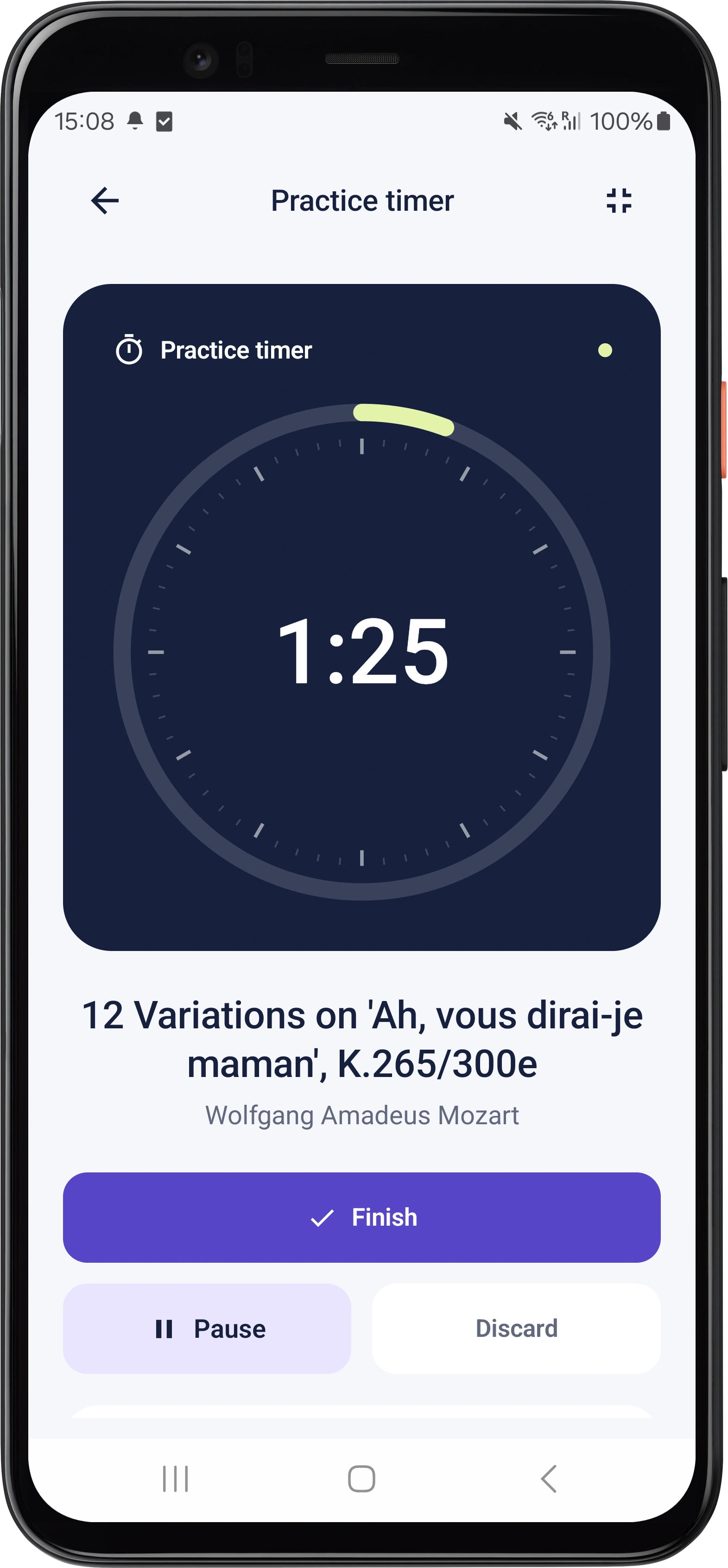
The Android screen below makes a useful distinction visible: Pause and Finish are separate controls. When you are done, complete the finish flow and look for the resulting entry rather than leaving an unfinished timer as your only record.
If the timer has already failed, check for a saved entry before adding another. Reconstruct the duration from a clock, your start and finish times, or another record you trust. Mark an uncertain duration as an estimate in the notes, and subtract a long interruption if you were no longer practising. There is little value in inventing precision down to the second.
For an iPhone fallback, Apple explicitly says that its Clock stopwatch continues when another app opens or the phone sleeps. You can use that total and enter the session afterward. A separate watch or kitchen timer serves the same practical purpose if you want the phone available for the score.
Keep the musical detail too: the passage, what changed and what still needs work. “About twenty minutes; the entrance is secure from the previous phrase, still hesitant from silence” remains useful even after a timer problem. Our post on what to track besides time gives more examples of records that help at the next session.