The phone beside your instrument and the computer where you organise your week can belong to the same practice routine. Practis is available for iPhone and iPad, Android, and the web, so you can choose the screen that suits the job. The important first step is to use the same Practis account everywhere, rather than starting a new diary when you install another app.
Practis is our app. This guide explains the available platforms and a practical way to set them up together; the Android and web images show the interfaces with separate example records.
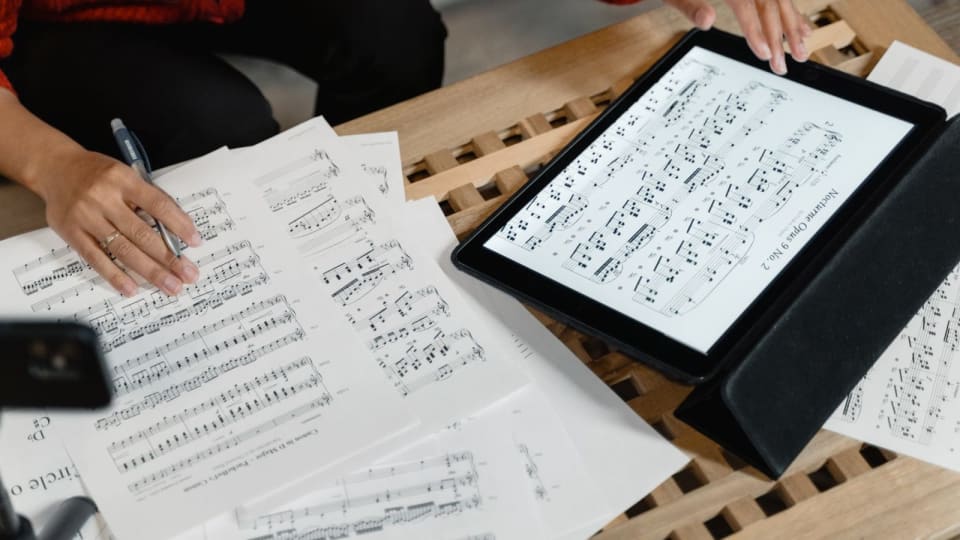
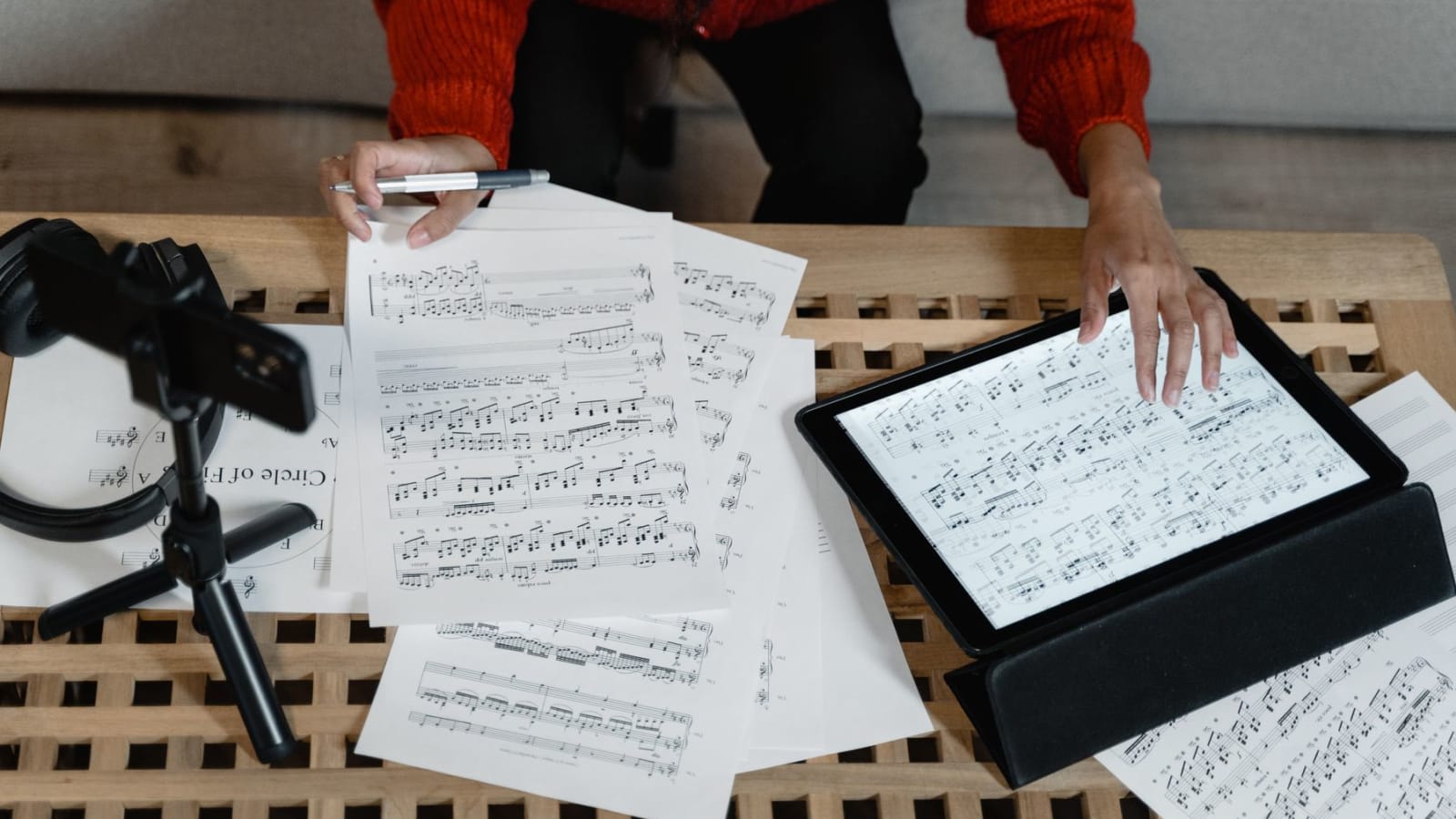
Featured photograph: Tima Miroshnichenko / Pexels. The tablet in this stock photograph is not showing Practis.
Start with the device you already use
There is no need to buy a tablet to keep a practice diary. If your phone is already within reach when you finish playing, it is a sensible place to begin. A larger screen becomes useful when you want to read a full page of music, compare several pieces or type a longer note.
- iPhone or iPad
- Install Practis from the App Store. The current listing requires iOS 16.0 or iPadOS 16.0 or later. It describes diary logging, repertoire, PDF score reading and planning, with your Practis account also available on the web.
- Android phone or tablet
- Install Practis from Google Play. Check the store on your device for compatibility. The listing includes a timer, manual session logging, repertoire and score reading.
- Windows, Mac or another computer
- Open the web diary in your browser and sign in. You can use a keyboard and larger display without installing a separate desktop app.
On a phone, the useful job may be as small as saving the twenty minutes you just spent on an entrance. On a computer, it may be finding out which piece has not had any attention since last Tuesday. The screen does not need to do everything equally well for the combination to be useful.
Connect the second device to the diary you already have
Your repertoire and saved practice records belong to your Practis account. The mobile apps and web diary use that shared account, but installing an app does not by itself identify which diary is yours. Begin by checking the account you already use.
- On the first device, check your account details. Note the email associated with your existing Practis account and how you normally sign in.
- On the second device, choose sign in. Use that existing account rather than creating another one.
- Find a familiar piece. Check a title you recognise, then look for a recent saved session.
- Compare something specific. The piece, duration and a distinctive note are more useful than checking whether a dashboard looks vaguely familiar.
For your first check, keep both devices online and finish saving on the first before opening the record on the second. If the diary is unexpectedly empty, check the signed-in account and refresh the view before adding the same repertoire again.
A small first check
After a genuine practice session, leave a recognisable note such as “Second verse: start from the breath before the entrance.” Open that saved session on the other device. This checks the part of your setup you actually intend to use, without filling the diary with invented practice time.
A running timer is a different matter from a saved session. Finish and save on the device you used for practice before moving to another screen. Treat that as the handover point, rather than expecting an unfinished timer to move between devices.
Let the phone handle the moment and the computer handle the overview
A phone is well suited to the few seconds between putting down the instrument and forgetting what happened. Choose the piece, use the timer or log the session afterward, and leave enough of a note to help next time. A complete account of the evening is unnecessary; “The entrance worked from the previous phrase, but not from silence” gives you something to return to.
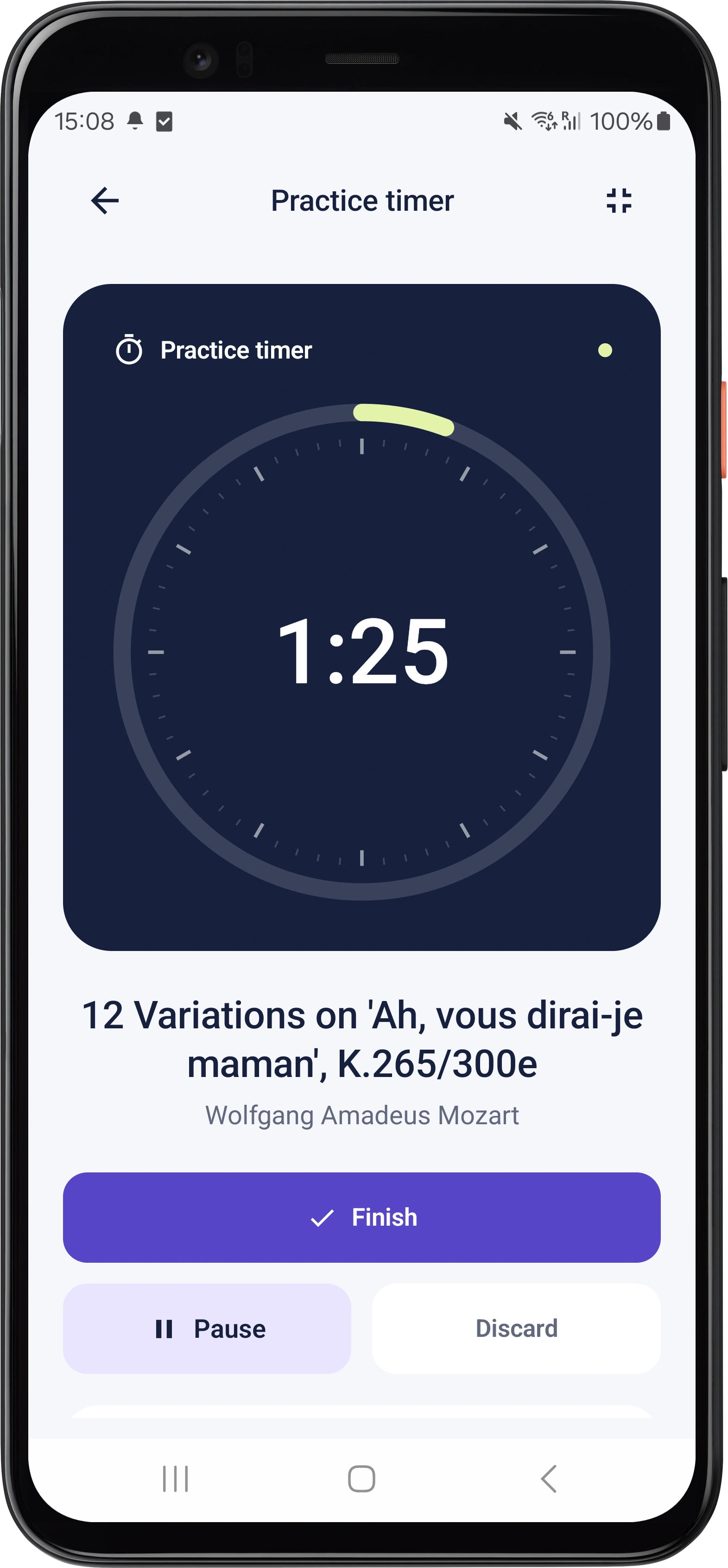
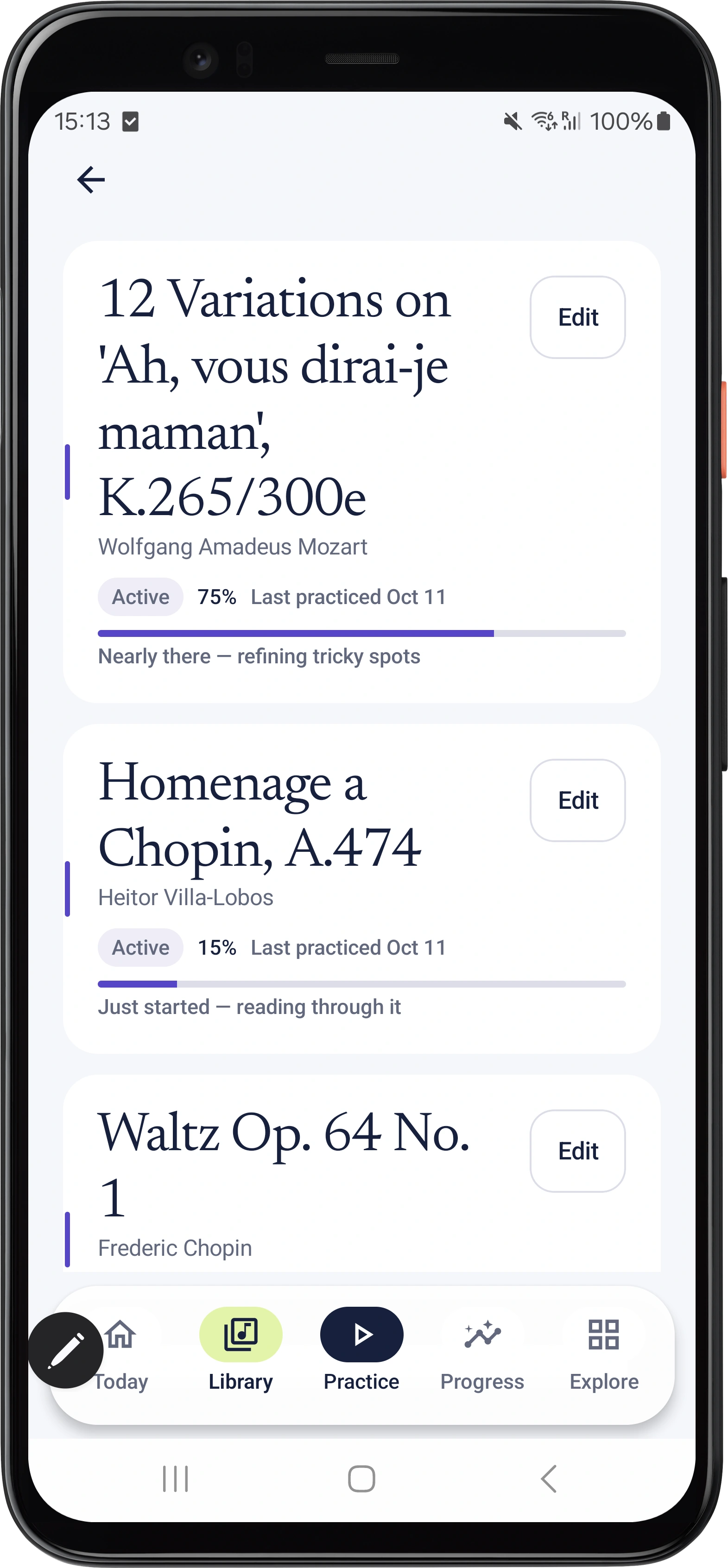
The Android screens below show a running timer and a repertoire view. The timer is attached to a named piece, which keeps several attempts connected to the same work. The repertoire view provides another way back into that music.
At a desk, you have room to compare titles, dates and notes together. That can make it easier to choose the next piece or notice that the same unresolved passage has appeared in several entries. The web repertoire view below shows that wider arrangement.
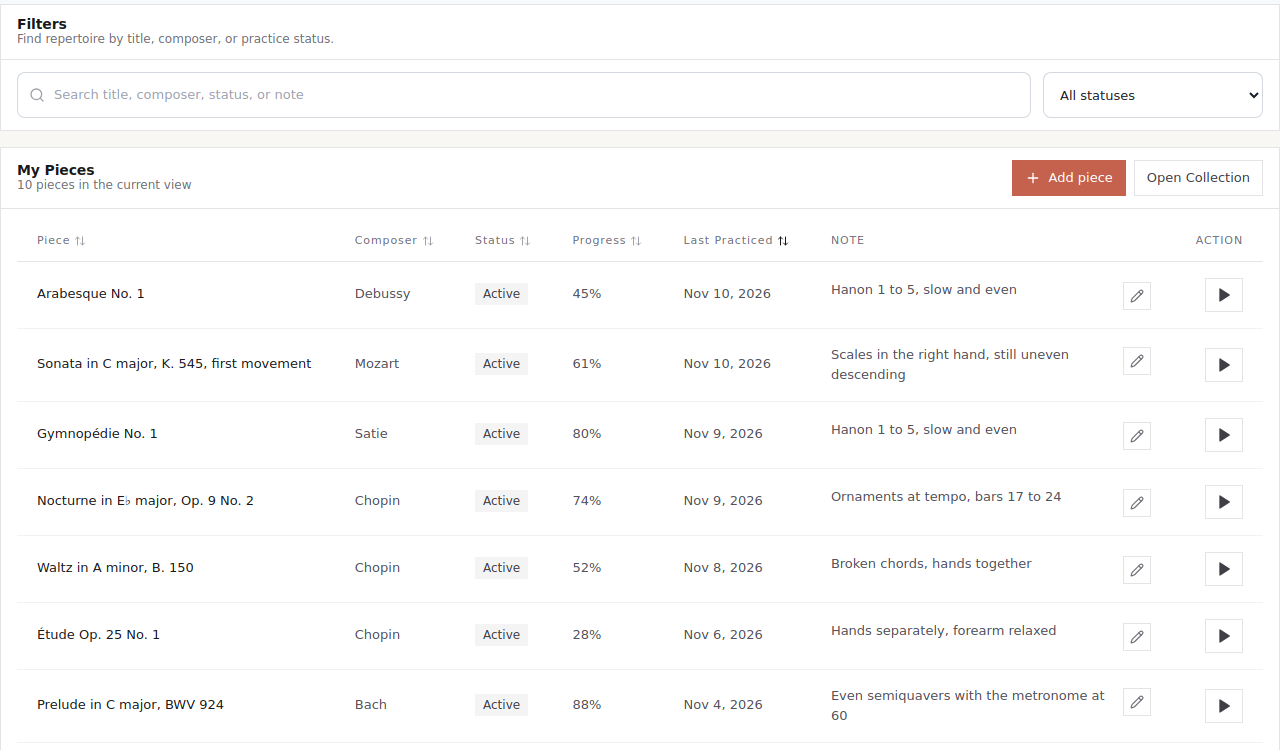
Keep the review modest. Find one entry that needs a follow-up, decide what you will try, and stop. Our post on keeping a practice diary explains how to make those notes useful without turning practice into administration.
Check scores and recordings separately from session notes
A short text entry, a PDF and an audio file are different things to carry between devices. Finding yesterday's note does not tell you whether the score you need has finished uploading or whether a recording is ready to play. Open the actual file on the device you intend to take to the lesson.
For scores, start with the correct edition attached to the correct piece. A PDF sitting in a computer's Downloads folder is not automatically part of your account. After adding it, check the page you need on the second screen. If reading a full score is the main reason you want a tablet, our post on screen size and stand fit helps with that hardware decision.
The Android listing describes offline session logging followed by sync when a connection returns. That is useful to distinguish from assuming every score, recording or editing tool is available offline. Before relying on a disconnected device, check the particular material you need on it. Reconnect before checking newly saved work elsewhere.
For a recording, finish the take and its upload before closing the app or changing devices. Then play it from the second device. Hearing the intended take is a more useful check than seeing a filename.
One account does not mean identical checkout screens
Pro access is associated with your Practis account. If you already pay for Pro, sign in and check that account before starting another subscription on a second device. If paid access is missing, check the original purchase account and contact support rather than paying again to solve a login problem.
Prices and offers differ by purchase route. As checked on 10 November 2026, the US App Store listing shows $3.99 per month. The website offers $4.99 per month with an advertised first month free, or $39.99 per year charged upfront without a free trial. These are USD prices; local taxes may apply. Check Google Play's purchase screen for its current local price and terms.
Manage renewal through the place you purchased: Apple subscriptions for an App Store purchase, Google Play for a Play purchase, or your Practis billing settings for a website purchase. Moving from a phone to a browser does not move the billing agreement.
You can begin with a Free account and a small repertoire. New Free accounts can track up to five pieces. Recording access also deserves a platform check: the iOS listing places recordings under Pro, while ordinary audio recording on the web is available to signed-in Free users within the storage allowance; web video recording requires a paid tier. Our Free and Pro guide explains the web choices in more detail.
Make the first setup small
Start with one piece you are playing this week. Save the next session on the device nearest your instrument, then find it on the screen where you prefer to review. Once the piece, note and any file you need are where you expect them, add the rest of your active repertoire.
If you are starting fresh, create a Free Practis account or use the store link for your phone above. If you already have a diary, sign in to that one. The useful result is being able to pick up the same musical work when you put down one screen and open another.