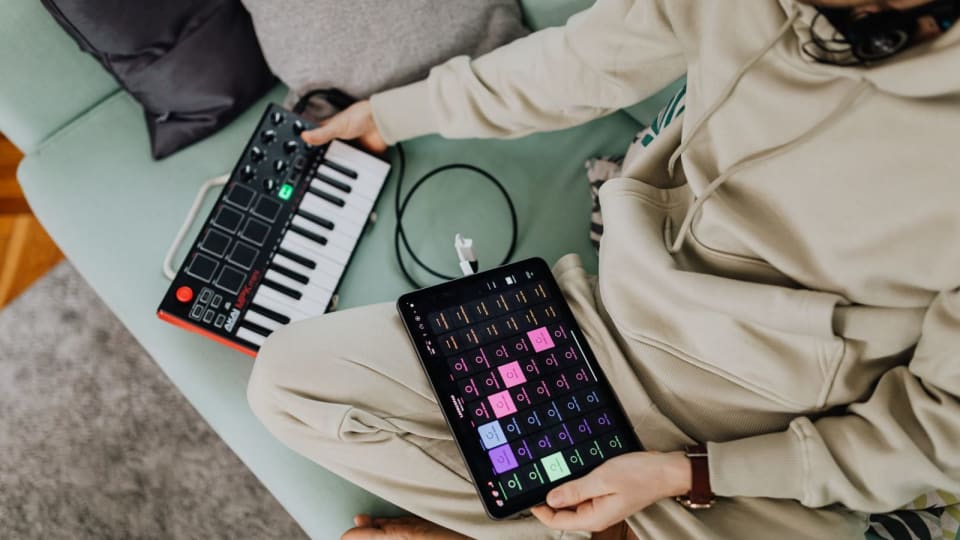
A missed note in a piano app can come from several quite different places: the room, a blocked microphone, a cable, or the course you have open. Repeating the passage harder rarely tells you which one. Start by finding out what the app is receiving.
First separate microphone recognition from MIDI. A microphone needs audible piano sound. MIDI sends key events through a connection, so the piano’s speaker volume is not the detection control.
Have ready: your instrument, the device you normally use and one simple exercise you can already open. Keep the same exercise throughout the checks.
Scope and versions: these are documentation-based checks for Simply Piano on iPhone/iPad and Android, plus flowkey’s mobile apps and desktop web player, checked 20 September 2026. Simply Piano’s US Apple listing was version 9.10.93; its support page lists iOS/iPadOS 15 and Android 6 as minimums, with no desktop app and no Amazon Fire support. flowkey’s web player is updated as a service; menu labels can change.
Cost and skills: the checks use your existing app access and equipment. No new subscription is needed to retest an unlocked exercise. You need to identify a few keys, open device settings and reconnect a cable. A MIDI test additionally needs a compatible MIDI-capable instrument and data connection; an ordinary acoustic piano uses the microphone route.
Use one short passage as a baseline
Open an instrument-playing lesson, rather than a lesson that expects taps on an on-screen keyboard. Choose a slow passage with separate notes around middle C. Confirm the notes and octave against the app’s keyboard display; octave-number labels differ between systems.
The repeatable check
- Take your foot off the sustain pedal. On a digital piano, select its normal single piano voice.
- Play each expected note separately at an ordinary volume, releasing it before the next. Repeat the same short passage twice.
- Write down the result: no response, a consistent wrong note, or occasional misses. Change one setting, then repeat exactly that passage.
A successful simple passage is a useful baseline. It does not prove that dense chords, fast playing or pedalling will be recognised reliably.
Follow the path you actually intend to use. A USB cable being present does not, by itself, show that the app has selected MIDI.
Where the note enters the app
- Microphone pathPiano sound in the roomCan the device hear the instrument?
- Selected microphonePermission and physical position
- Listening exerciseRepeat the same single notes
- MIDI pathKey event from the instrumentPower, data port and cable
- App’s MIDI inputDevice selection and permission
- Instrument-playing exerciseRepeat the same single notes
Microphone: check what is audible, then permission
Listen from the tablet’s position. If headphones plugged into the piano have muted its speakers, the tablet’s microphone has little or no piano sound to recognise. For a brief microphone test, restore the piano speakers at a comfortable level. An acoustic piano remains audible even when you listen to the app through headphones.
Headphones connected to the tablet serve a different purpose: they keep the app’s backing track out of the room. Simply recommends this in its iOS keyboard recognition guidance. If a headset changes the selected microphone, check the input again rather than assuming the tablet’s built-in mic is still active.
Reduce nearby conversation or TV sound and check that a case is not covering the microphone. Move the device to a stable position nearer the piano, without balancing it on moving keys or an insecure ledge. For acoustic instruments, flowkey’s guidance also identifies background noise, device position and tuning as factors.
Simply Piano on a phone or tablet
On iPhone or iPad, open Settings → Privacy & Security → Microphone and allow Simply Piano. On newer systems you can also find the app under Settings → Apps. A restricted child’s device may need a parent or administrator to allow the change.
On Android, check both the device-wide microphone access switch and Settings → Apps → Simply Piano → Permissions → Microphone. Labels vary by manufacturer. Simply’s microphone-permission instructions cover these two levels. Return to the instrument lesson and repeat your baseline.
flowkey in desktop Chrome
Open Chrome’s Settings → Privacy and security → Site settings → Microphone. Allow the flowkey site and select the microphone positioned to hear your piano. The computer’s operating-system privacy settings must also allow Chrome to use it. Google’s microphone guide explains both controls; a school-managed computer may require its administrator to change them.
Back in a flowkey song, open the gear menu and check Microphone & MIDI Settings. A USB headset or audio interface can introduce another input with a similar name. Make one selection and retest.
MIDI: establish a simple connection first
For a wired check, power the instrument normally and use its documented USB-to-host or MIDI output. A USB socket intended for a memory stick is a different function. Use a data-capable cable and, where required, the correct host/OTG adapter. Our iPad cable guide explains the physical options.
Temporarily remove unnecessary devices from the connection. If a hub is essential, retain the power it needs; a charging light does not establish a working data path. The hub and port guide covers that distinction. With a conventional five-pin interface, the interface’s MIDI IN receives the piano’s MIDI OUT; follow the interface’s labelling instructions.
Simply Piano: connect before opening the course
Simply’s Apple MIDI troubleshooting says to establish the connection before starting a lesson. Touch Intro and Keep in Touch use the on-screen keyboard, so they are unsuitable for this test.
Its Android troubleshooting gives an additional app setting: Menu → Settings → Note Recognition Issues → MIDI Troubleshooting → Use Android MIDI Services, followed by a device restart. Confirm that your adapter supports OTG first. There is no need to start by changing developer options across the whole phone.
flowkey: choose the input in the player
On a computer, use an up-to-date Chrome browser as the first baseline. flowkey’s browser-support page recommends Chrome and lists Safari and Firefox as microphone-only for its service. In a song, open gear → Microphone & MIDI Settings and select the instrument if it was not detected automatically.
Close other MIDI apps for the test, especially on Windows. If necessary, restart the browser with the instrument connected, as described in flowkey’s computer setup guide. Accept the relevant device permission when prompted.
Mobile menus differ. On iPad, use the player’s MIDI/Bluetooth Setup; the iPad guide explains Bluetooth MIDI selection there. The current Android guide uses MIDI/USB and also documents Configure Bluetooth MIDI. Bluetooth audio pairing alone does not connect a piano’s key events.
Detected notes but no sound? That is a separate output problem. MIDI is performance data. The app can generate a piano sound, or you can listen to the instrument’s own sound. USB audio through the same cable requires instrument support; it is not a consequence of having USB MIDI. flowkey’s headphone setup guide describes its app-sound and piano-sound routes.
Consistently wrong notes need a different check
If C is repeatedly recognised as C-sharp, look at the digital piano’s transpose setting before moving the microphone again. Note the existing value, then use the instrument manual to return it to its normal zero setting for this test. Simply describes this symptom in its transpose troubleshooting page. How an instrument applies transpose or octave shifts to MIDI output is model-specific, so check that part of its manual too.
An acoustic piano’s tuning can also differ from the app’s reference: flowkey specifies A = 440 Hz. If tuning seems substantially off, ask a piano technician to assess it. Randomly changing app settings to accommodate every missed note can obscure the original problem.
Once the simple baseline works, restore one complication at a time: the original song, sustain pedal, headphones, then any extra hub devices. The first change that brings the problem back is useful evidence.
If it still fails, send support a compact report like this. Fill in your own details; the values below are prompts, not a tested configuration.
- Setup
- Piano model; phone/tablet/computer model; operating-system and app versions; browser version if applicable.
- Input path
- Microphone, USB MIDI or Bluetooth MIDI. Include adapter and hub models, and where headphones are plugged in.
- Repeatable fault
- Exact course/song and passage; expected note; what the app shows; whether it happens every time.
- Checks done
- Permission/input selected, transpose setting, and the result with the simplest connection.
In Simply Piano, use Menu → Help & Support; flowkey offers in-app chat through its setup help centre. Do not delete the app or factory-reset the piano as an opening move. Confirm how your progress and instrument settings are backed up before following any support instruction that could remove them.