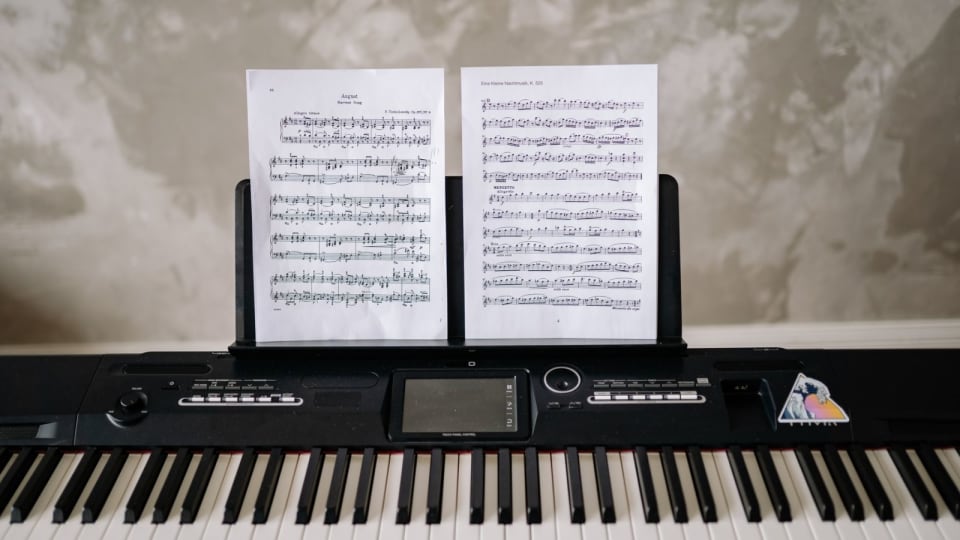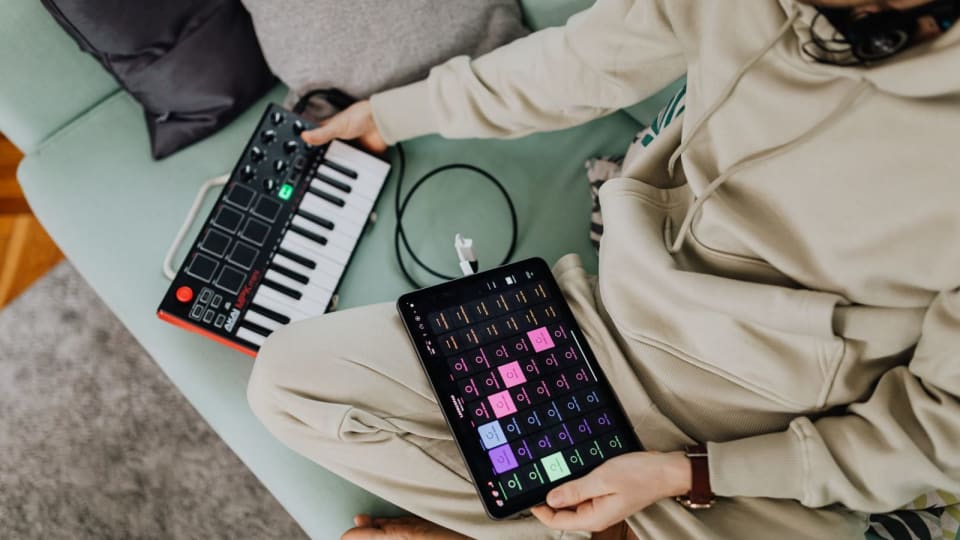
A tablet can open a score perfectly and still fail the job you need it for at rehearsal. The page-turn pedal, piano connection, recording app and headphone output each add another dependency. With iPadOS 27, the useful question is whether your whole musical task is ready for the update.
Before updating your main music iPad, check each essential app and accessory, make an off-device backup, and repeat a small set of musical tasks on the current system. Keep the results so you can run the same checks afterward. If an essential product is still awaiting manufacturer confirmation and a performance is close, schedule the change for a less critical window.
Support information checked 28 September 2026. The comparison below reports manufacturers' published positions; it is not a hands-on compatibility test of every combination.
You need your existing iPad, its usual music apps and accessories, a charger, and enough space for a backup on a computer or suitable cloud service. No new interface or pedal is required to do the checks. Any extra storage or app upgrade cost depends on what you already have. Allow a quiet session with time to listen back, and know how to find an app's version and export your own files.
Start with the job, then list its dependencies
Write down one concrete outcome: “Read tonight's programme and turn pages with the pedal,” or “Record the piano in stereo and export the take.” That gives the check a finish line. “The iPad works” tells you very little about either task.
Apple's iPadOS 27 model list answers the first question: can this particular iPad run the system? Match the model and generation, rather than its screen size or the year you bought it. Record the installed OS version as well. Eligibility alone does not settle app, interface or pedal support.
Work down these four layers. A positive answer at the top leaves the lower layers to check.
- The iPadExact model, installed OS and eligibility for the proposed update.
- The applicationApp version, developer's OS statement and the features you actually use.
- The connectionPedal or interface model, cable or adapter, power source and input/output route.
- The musical taskOpen the marked score, make the turn, play or record, then recover the saved result.
Include the small things in your inventory. A USB hub can supply power as well as carry data. A pedal may be connected as a keyboard-style controller or through an app-specific mode. A keyboard might send MIDI while its sound reaches the headphones by a completely separate cable. Keeping those routes distinct makes a later fault much easier to describe.
Photograph the working connections and save a few screenshots of relevant settings. Use the actual cable and power supply you take to lessons. If you first need to identify the ports, our digital-piano-to-iPad connection guide explains the wiring choices. Here, the aim is to preserve a known setup through an OS change.
What the current support statements actually say
Manufacturers use different levels of certainty. Confirmed support, a qualified expectation and an unfinished test should not be collapsed into the same green tick. These selected examples show why the exact model and connection matter.
- forScore 15.2
- Developer announces OS 27 optimisation.The 14 September release announcement explicitly addresses the new OS. Match your installed version to the developer's current release guidance, then check your own score and pedal workflow.
- Roland Rubix22/24/44; UM-ONE mk2; Piano Designer, Piano Partner 2 and Roland Piano App
- Still under testing for iPadOS 27.Roland's 16 September compatibility table has not confirmed these selected rows. That does not establish that they fail. Recheck the iPadOS 27 column rather than carrying over a “Yes” from an older OS.
- Scarlett fourth-generation Solo and 2i2
- Listed as compatible.Focusrite's 17 September table gives a positive result for both Lightning and USB-C iPads. This is hardware support, not confirmation of every recording app.
- Scarlett fourth-generation 4i4, 16i16, 18i16 and 18i20
- Expected to work, but untested.The same Focusrite table qualifies these models and identifies functions requiring Control 2. Check those functions separately if they are part of your routing.
- Scarlett third-generation Solo and 2i2; Clarett Thunderbolt
- Connector and product family change the answer.Third-generation Solo/2i2 receive a positive USB-C result but an untested qualification for Lightning. Clarett Thunderbolt is listed as incompatible on both. Similar branding is not evidence of interchangeable support.
For an unlisted product, search its developer or manufacturer's support site using the full model name and “iPadOS 27.” Check the page date, the table heading and any footnote. An App Store minimum system requirement tells you whether installation is allowed; it is weaker evidence than a specific statement about the newly released system.
A missing confirmation is most consequential when that product performs an essential job. You might tolerate uncertainty in an occasional sketching app. It is a different decision when the app controls the piano sounds required for a paid performance, or holds the only accessible copy of a marked programme.
Worked example: one iPad, two different decisions
Imagine a pianist using forScore to read locally available PDFs, with turns made by touching the screen. The relevant chain is relatively short: iPad, score app and files. The developer's OS 27 announcement provides a useful starting point, followed by a backup and a rehearsal of the actual programme.
Now add a lesson workflow that depends on Roland Piano App and a UM-ONE mk2 MIDI connection. Those products have their own pending status. The score reader's announcement cannot answer for them. The pianist should check that lesson chain separately and consider postponing the main-device update if losing it would disrupt scheduled work.
Adding a page-turn pedal to the first setup also adds another check. Neither example is a test result or a claim that the named chain will fail. They illustrate how the essential task changes the decision.
Back up the score library, including the work added to it
A PDF folder can look reassuringly complete while leaving out the annotations and setlists that make it useful. Start with a current device backup using one of Apple's supported iCloud, Mac or PC methods. Then check what your music app recommends for preserving its own library.
forScore makes a useful distinction. Its ordinary 4SB backup preserves app information, while the score and other document files must also be copied. A 4SB archive combines those parts and needs more free space. That distinction is explained in its backup and storage guide. The file extension alone does not tell you that you exported everything.
The two routes below describe that packing difference. Follow the app's current backup instructions for the actual export and transfer.
Backup plus documents
App information in a backup file
+ Scores, audio and other library documents
Copy the complete set off the iPad.
Archive
App information and documents packed together
= One larger library file
Copy that archive off the iPad.
After transferring, check that the destination contains the new file, with the expected date and a plausible size. If you copied PDFs separately, open a few from the destination, including the piece you need next. A list of filenames is a weaker check than opening the files. Keep your older known-good copy until you have verified the new one; do not test recovery by deleting the only working library.
Also separate data recovery from OS rollback. Apple's computer-based factory restore erases the device and installs the latest software. A backup created on a newer system can itself require a newer OS to restore. Having a backup therefore does not promise a return to the exact pre-update operating system.
For an approaching performance, prepare an immediately usable fallback as well: permitted printed parts or a second device already checked with the required material. Restoring a large library is not a useful interval-time contingency. Make sure the fallback includes your cuts and markings, rather than just an unannotated original score.
Rehearse these tasks before changing anything
Use a short, repeatable sequence and save its result. It should cover the things your setup is supposed to do, including the final file or page state. There is no need to buy diagnostic software or run every possible music app.
Reading: open a familiar marked score, jump to a bookmark, change pages and return to your setlist or library. Check the exact display mode you use at the stand. If rehearsal requires offline access, test the app's supported offline workflow with the files already downloaded; an item visible in a library is not enough. Never log out or remove files simply to simulate a failure.
Page turns: with the actual pedal and selected mode, move forward and backward through several pages. Try a repeat or jump you use in performance. Note whether the app receives one turn per press and whether returning from another app changes the response. These are checks to perform, not a promise that every pedal or app offers the same controls.
Audio: record a brief passage, stop, save and reopen it. Listen to the saved take at a comfortable level. If you expect stereo, verify both channels in the recording app rather than relying only on what you heard while playing. Direct monitoring can let you hear the instrument through an interface even when the app has not captured the intended input.
MIDI: use the same receiving app and connection as usual. Confirm note starts and releases, sustain behaviour where supported, and a saved MIDI result if recording MIDI is part of the task. A MIDI connection carries performance instructions; it does not itself prove that piano audio was recorded. Keep the audio and MIDI results in separate lines of your notes.
A simple test record gives you something concrete to compare after the update. Write observations in the right-hand column rather than just marking everything “works.”
- ScoreName the file, opening page, one annotation and the bookmark or setlist checked.
- PedalRecord the selected mode and the result of forward, backward and return-to-app turns.
- AudioKeep a short saved take, the selected input/output and the channel result.
- MIDIName the receiving app, connection and the notes/pedal events you checked.
Try the sequence once with the whole setup assembled as it will be used. An interface-only check cannot reveal a problem introduced when you also attach the usual hub, power supply and pedal. Keep volume low when reconnecting audio equipment, and follow its manufacturer's power and connection instructions.
The physical arrangement is part of that baseline. This is why it helps to leave the usual adapters and headphones in the test rather than swapping several things at once.
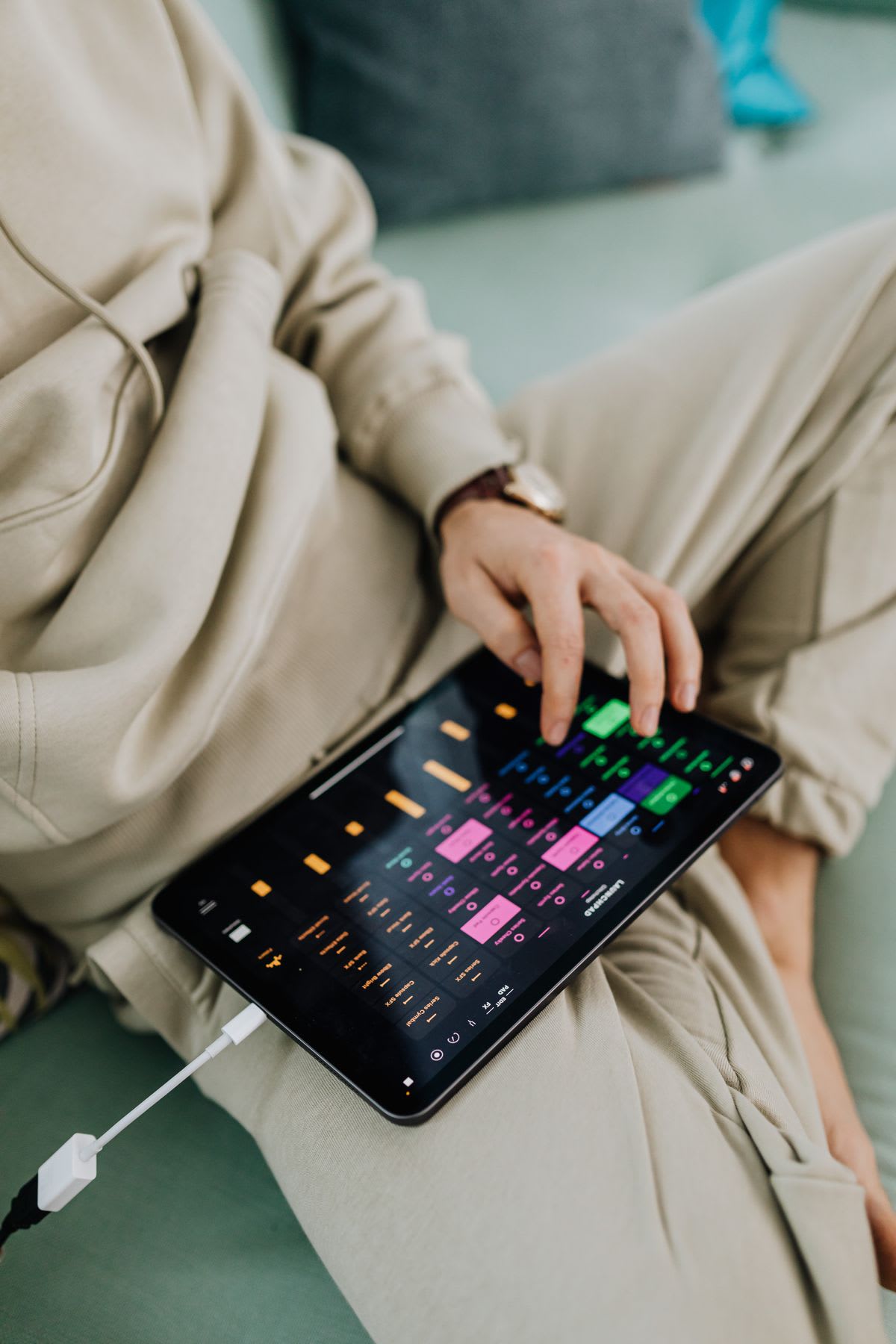
Choose a window that leaves time to recover
A sensible update window includes preparation, installation and a complete repeat of the musical checks. It ends when you have opened the real programme or played back the saved recording. Avoid scheduling it between a soundcheck and a performance, even if the download looks small.
Once the essential support questions are resolved, use Apple's update procedure: back up, connect power and Wi-Fi, then check Settings → General → Software Update. Record the version you install. Leave adequate free space; do not clear it by deleting your only copies of music or recordings.
Check the automatic-update settings before a time-critical week so installation timing is deliberate. This is not a recommendation to neglect security updates indefinitely. Apple's guidance explains automatic downloading, installation and system-file settings separately. If your iPad belongs to a school, coordinate with its administrator rather than trying to bypass management restrictions.
After installation, repeat the baseline before adding new apps, changing adapters or rebuilding the setup. If a developer requires an app update as part of OS support, record that change too. A useful comparison says which variables changed; it does not require keeping an unsupported older app merely to make the experiment tidier.
If you are still choosing the physical arrangement rather than checking an established one, the iPad sheet-music setup guide covers the reader, stand and accessory decisions. That is a separate job from deciding when a working system is ready for an OS transition.
If something changes, isolate the failed task
Describe the symptom before changing the setup: the interface is absent, the app shows an input but records silence, the recording plays through the wrong output, or the pedal turns twice. Those are different problems. Buying another hub before identifying which one you have can leave the original problem untouched.
For audio, work from recognition to input, then recording, then playback. Confirm the device is powered and connected as its maker specifies. Check the app's chosen input and where headphones or speakers are actually connected. Inspect the saved file before deciding that an output-routing problem means the recording itself was lost.
Focusrite's iPad sound troubleshooting guide also covers app microphone permission, which can govern external audio input, and voice-processing settings that can affect music. Its documented settings test was on OS 26, so use it to identify relevant checks rather than treating its screenshots as proof of OS 27 behaviour. Follow current instructions for the app and OS you have.
When a score opens but the pedal stops responding, compare the saved pedal mode and app command assignment. First establish that touch-based page turning still works. Our page-turner troubleshooting post separates pairing, modes and application commands. An OS change is useful context, but timing alone does not identify the cause.
Leave the working library in place while investigating. Deleting and reinstalling a music app can remove locally held material. If support recommends that step, first establish what the backup contains and how it will be restored. Do not erase the device as an exploratory first response to one failed feature.
Keep a useful result, even if it is “not ready yet”
A short support request with exact versions and one repeatable failure is much easier to act on than “music stopped working after the update.” Use your baseline to say what previously happened, what changed and which parts still work. Share only the minimum diagnostic material, with personal details and private student information removed.
This is a fictional example of the level of detail to send, not a report of an observed iPadOS 27 fault.
Setup: Exact iPad model; previous and current OS versions; app version; interface/pedal model; adapter and power arrangement.
Task: Open the same test project, record a short passage, save it and play it back.
Result: The app shows the interface, but the saved take is silent. The score reader and touch page turns still work.
Already checked: List the input, permission and routing checks actually performed. Attach the short non-private test file if support requests it.
Keep the final record beside your programme or project: installed versions, backup location, completed checks and any unresolved limitation. If you postpone the update, add a date to recheck the relevant support page. That gives you a specific next action without making every practice session another round of troubleshooting.