
Page-Turn Pedal Connected but Not Working? Trace the Command
Fix a page-turn pedal that connects but does nothing. Check its key mode, reader shortcuts, typing focus, repeat setting and wake-up behaviour.
Mia
Community & Content. Writer and lifelong pianist. Writes about gear, production, and the business side of making music.

A Bluetooth “Connected” label confirms a link to the device. It does not tell you which command the pedal sends, whether the reader accepts it, or whether a text box has captured it. Check those separately before resetting everything.
Start with the reader open on the middle of a multi-page score. Confirm that its on-screen next-page control works, then test the pedal's keyboard mode and the reader's matching shortcut. You need your existing pedal, charged device, reader and a score you can already open. An ordinary computer keyboard is useful for comparison if you have one; no new purchase or subscription is required for these checks.
Find where the command stops
Use one document and change one setting at a time. Start away from the first and last pages, where a perfectly good command can have nowhere to go. This sequence narrows the fault without treating every failure as broken Bluetooth.
Does the on-screen next-page control work?
No: check that the PDF has loaded, contains more pages and is in its reading view.
Yes: continue to the command test.
Does the pedal move a text cursor in an arrow-key mode?
No: check the selected host, power and pedal mode.
Yes: that key is reaching the device; investigate the reader's mapping and focus.
Does the same key turn a page from an ordinary keyboard?
No: check the reader's shortcuts and active view.
Yes, but the pedal does not: confirm that the pedal really emits that key, without an extra modifier or repeat.
For the cursor check, open a blank note, type two short lines and place the cursor within the text. Select a documented left/right or up/down arrow mode on the pedal. A matching cursor movement confirms that particular command is arriving. Page Up and Page Down may produce no visible movement in a short note, so they are poor choices for this test.
Check which tablet or computer currently owns the connection. A pedal can reconnect to yesterday's laptop while today's tablet lists it as a remembered device. Disconnect it from the old host temporarily. Record your custom mappings before any reset, then follow the instructions for the exact model and hardware revision.
Keyboard, app-direct and MIDI modes are different
The AirTurn DUO 500's BT500 controller offers keyboard modes, AirDirect and MIDI. Mode 1 is AirDirect, which needs explicit app support; Mode 7 sends MIDI. For an ordinary keyboard-shortcut reader, begin with a keyboard mode such as Mode 2, then verify its output. AirTurn's DUO 500 troubleshooting page covers a connection that appears active but does nothing.
The BT500 manual gives the mode matrix and customisation options. A programmed mode may no longer emit its factory keys. Record what the left and right switches actually do rather than relying on a remembered mode number.
PageFlip Firefly has dedicated choices for arrow keys, Page Up/Down, mouse clicks and Space/Enter. A mouse-click mode does not become a page-turn shortcut just because pairing succeeded. Use the manual matching your PageFlip model and select a keyboard command the reader recognises.
Check the reader while the score is active
We tested the following Practis Score behaviour on 27 September 2026 in Chromium 131 on Linux, using a four-page original score and simulated keyboard input. Practis is our product. This verifies the reader's response to keys, not a physical pedal's Bluetooth reliability on iPad, Android or another computer.
These keys worked in the deployed reader with the score active and no text field or dialog taking focus:
Arrow-key commands are a useful starting point because Space and Enter also activate focused buttons. In our check, pressing Enter on the Previous page button moved backwards. An arrow pressed while a text input had focus left the score page unchanged, as it should while typing.
Watch the page counter as you test. It distinguishes a successful page change from a scroll or a control receiving focus.
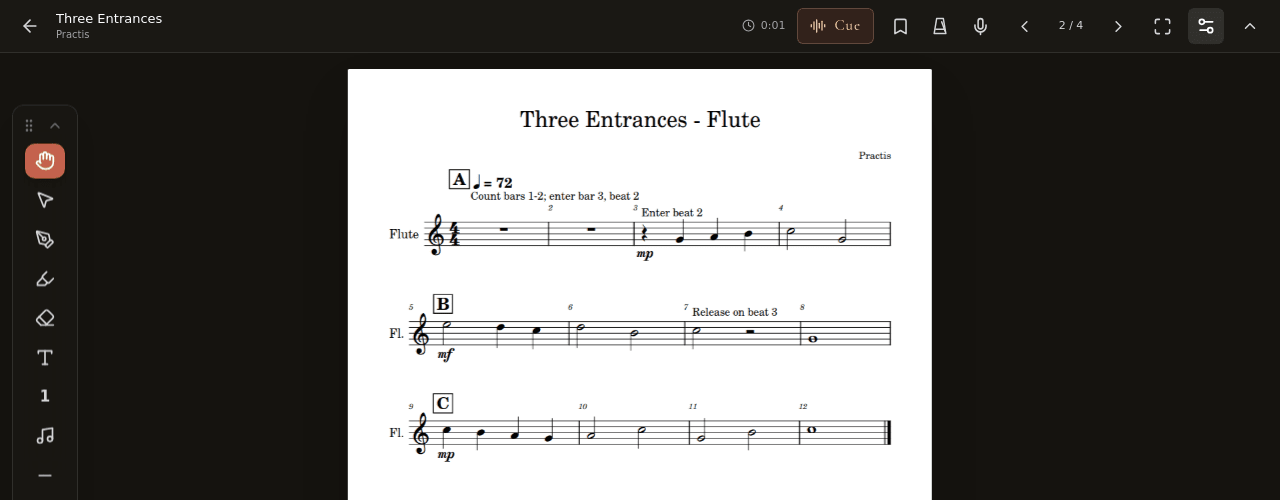
Close search, annotation-text entry and settings dialogs before trying again. In a browser, bring the score tab to the foreground and move focus out of the address bar or another embedded view. If a reader has a configurable shortcut panel, use it to identify the incoming key.
In forScore, check the stored shortcut
Open Tools → Settings → Page Turners & Shortcuts. Select the next-page action, activate the pedal, and check whether forScore records a command. Return to the main score view to try it. Its current shortcut instructions explain how to remove a custom assignment and restore the default; previous/next defaults include the arrow and Page Up/Down keys.
forScore also identifies Full Keyboard Access in iPad accessibility settings as a possible source of interference with PageFlip commands. Its PageFlip support page describes the check. If you depend on that accessibility feature, do not permanently disable it just to make a pedal work: record the result of a reversible test and ask the reader or device maker for a compatible configuration.
There is no need to change readers before trying these checks. If you are deciding between workflows later, the forScore and Practis comparison covers the different reading and practice tools.
It skips pages, or fails after a long rest
Several turns from one press: briefly tap and release, then compare with a held press. The Firefly's REPEAT switch sends repeated commands while held when enabled. Set it to Off for ordinary one-press page turns. The current Firefly manual describes this behaviour. Also check the reader's two-page setting before assuming it has skipped a page.
If a quick tap still makes multiple turns, note whether both switches do it and whether another compatible reader behaves the same way. That is useful evidence for support. Repeatedly pressing harder can obscure the pattern.
The first press after a break does nothing: check the pedal's sleep behaviour. PageFlip says a sleeping Firefly may take a few seconds to reconnect after a tap; its default battery idle period is 30 minutes. Newer Firefly revisions allow timeout changes, while USB power avoids sleep. See the manufacturer’s FAQ. AirTurn's BT500 manual instead describes a configurable idle power-down timer. Do not apply one model's wake procedure to all pedals.
After a realistic rehearsal break, wake the setup and verify a forward and backward turn before playing. Include the tablet's own lock and wake cycle in that check.
The on-screen keyboard disappears, or keeps taking focus
A keyboard-profile pedal can make an iPad behave as though a physical typing keyboard is attached. forScore's virtual-keyboard guide explains model-specific toggles. For a Firefly, press its currently selected mode button; this toggles the on-screen keyboard without changing the mode. On the BT500, the manual describes pressing the power button while a text field is selected in Modes 2–6. Do not hold it as though resetting the device.
If the keyboard is visible because you were entering a title or annotation, finish that entry and return to reading. On Android, the option to show the on-screen keyboard alongside a physical keyboard depends on the device's keyboard settings; follow the instructions for your tablet.
Before a performance, keep a short setup record. It gives you something precise to restore, or to send to support if the fault returns.
Keep a manual turn available and practise reaching it. The tablet-and-stand setup matters here as much as the wireless connection. If testing establishes a hardware fault or a genuine compatibility gap, use the pedal comparison to check replacement requirements.
Further reading
 Apps & Tools
The Best iPad Sheet Music Setup in 2026: App, Pedal, Stand, Scanning
The best iPad sheet music setup pairs a 13-inch Air with Practis, a silent page-turn pedal, a secure stand, smart scanning, and stage-safe settings.
18 min read Setup
SetupBest Bluetooth Page Turner Pedals in 2026: AirTurn vs PageFlip vs Donner
The best Bluetooth page turner pedal depends on switch feel, power, and app mapping. Compare AirTurn, PageFlip, and Donner models from $50 to $130.
15 min read Apps & Tools
forScore vs. Practis Score Practice: Reading Music vs. Practicing It
forScore vs Practis Score comes down to purpose: forScore manages an Apple performance library, while Practis carries score work into the next session. The honest choice includes where forScore is still clearly ahead.
14 min read