A list of pieces is easy to build in Notion. A practice tracker has another job: keeping Monday’s work, Thursday’s recording and next week’s reminder connected to the same piece. That connection is where the choice between a configurable database and a dedicated music app becomes interesting.
Practis, our app, is the simpler starting point when you want a piece-linked timer, session history and recording tools already arranged. Notion is a better fit when your journal needs fields and page layouts you want to design yourself, especially if your musical projects already live there.
Both can support the small week below without a paid plan. The meaningful difference is what you enter after playing, what you configure once, and what you must maintain as the log grows.
We use one fictional week to make those jobs visible. The Practis examples use its current interface with isolated example records; the Notion design follows its documentation and has not been tested in a Notion workspace. You can download the records, but they are not a ready-made Notion template.
One week, three pieces, four sessions
Imagine working on three short pieces during 5–11 October. These are invented titles, so there is no assumed syllabus level or practice prescription. Each session row records time on one piece. A visit to the piano covering two pieces would need two rows with the minutes divided between them.
- Mon 5 OctS01 · P01Evening Study in G
Bars 1–8: separate the melody from the accompaniment.
20 min - Tue 6 OctS02 · P02Bridge Study
Bars 9–12: check the left-hand changes slowly.
15 min - Thu 8 OctS03 · P01Evening Study in G
Bars 1–8: save a reference take. Recording R01.
25 min - Sat 10 OctS04 · P03Morning Waltz
Whole piece: mark the two hesitant transitions.
30 min
On Friday, the first piece is renamed from Evening Study to Evening Study in G. Thursday’s entry also refers to a recording, labelled R01. By Sunday, the journal should answer three ordinary questions: how much time went into that piece, what happened in its last session, and which take belongs with those notes?
Evening Study in G45 minutes
Bridge Study15 minutes
Morning Waltz30 minutes
The week totals 90 minutes: 20 + 15 + 25 + 30. Evening Study’s 45 minutes come from two entries, even though its title changed. Counting the recording’s one-minute duration as additional practice would be a mistake if it was already part of Thursday’s 25-minute session.
An inventory with a single “last practised” column would show Thursday for Evening Study, but lose Monday’s separate note unless you kept it elsewhere. That inventory can still be useful. Our repertoire-management comparison covers that broader cataloguing task; here we need a record of the work done on each date.
The small design decision that keeps the week together
Give each piece one durable record. Then give each session its own record and connect it to the piece. The title is allowed to change; the connection should still point to the same underlying item. The diagram shows the relationship for P01, with the other two pieces omitted to keep it readable.
P01Evening Study in G
One piece record; formerly Evening Study
S015 October · 20 minutes
Melody and accompaniment note
S038 October · 25 minutes
Session note refers to R01, the reference take
The IDs make the downloadable example easy to check. You do not have to invent codes for every session in normal use. Their purpose here is to show why a row labelled “Evening Study” and another labelled “Evening Study in G” need not represent different pieces.
There is a second boundary worth deciding early: what counts as a different item? Renaming a spelling mistake is straightforward. Moving from an easy arrangement to the original score may deserve a separate piece or a clearly marked version, because “bars 9–12” could now mean different music. Keep that decision consistent whichever tool holds the notes.
Following the week in Practis
Practis already organises session records around pieces. Add the repertoire item, select it in the Practice Timer, and save the session when you finish. The timer supplies the date and elapsed duration to the save request. If you forgot to run it, the manual log lets you enter the date, minutes and notes afterwards.
The timer is still something you operate. It does not infer that you have started playing, identify the music through the microphone, or know whether a conversation interrupted the session. Pause it when appropriate. Saved timer durations use whole minutes, rounded up, with a one-minute minimum; a short experiment with the controls is therefore not a precise second-by-second practice record.
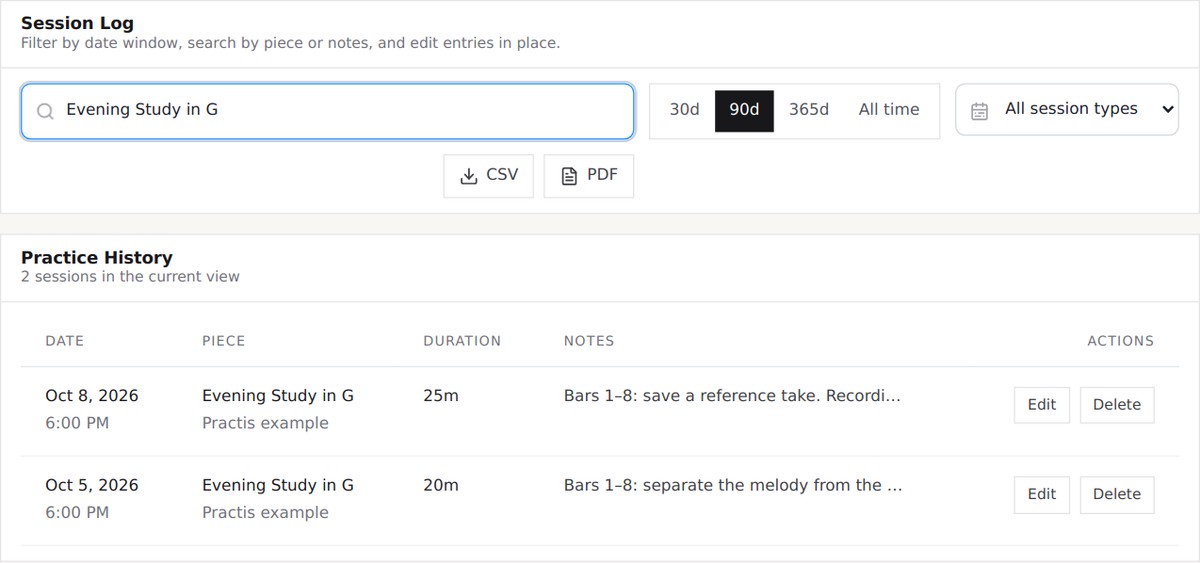
For the example week, open History and search for Evening Study in G. The two matching entries show 25 and 20 minutes. Search for R01 instead and the note identifies Thursday’s session. The search also accepts composer names and note text. Date-window controls help narrow a growing history.
Recordings have their own view. Select the piece there and use the take’s date, passage information and memo to find the audio you intended. In this example, the memo says “R01 · S03 · reference take”, matching the session note. Practis provides piece, section and bar fields, but this written reference is our organising convention: saving a timer session does not automatically attach a particular recording to it.

That is a useful limit to know before choosing an app for a large archive. A piece-level filter solves one problem; identifying an exact take among many still depends on good labels. Our post on organising practice recordings by piece and passage develops that task in more detail.
The attraction here is the amount of structure already supplied. You enter what happened, and the app has a place for it. The trade-off is that you work with its available fields and views. A completely different journal layout, or a set of specialist properties such as reed strength and audition language, is where a configurable database becomes more appealing.
How the same records would be organised in Notion
For this design, start with two databases: Pieces and Sessions. It assumes an individual Notion workspace, basic familiarity with database properties and an existing device and internet connection. No paid template, AI feature or third-party timer integration is required. You would measure the minutes separately and enter them yourself.
Keep the first set of fields small
In Pieces, use the piece name as the title, then add Composer, Status and the optional checking field Piece ID. In Sessions, use a short session title, Date, Minutes, Notes, Piece ID and Recording reference. Date should be a date property and Minutes a number, so the values can be filtered and added. Notion documents these types in its database-property guide.
Keep the two kinds of note separate. A fingering decision you expect to use for months belongs on the piece page. “Today the shift failed at the faster tempo” belongs with that day’s session. Otherwise each new observation gradually overwrites the account of what happened before it.
Connect sessions to pieces, then add totals
Add a Piece relation in Sessions, pointing to Pieces. Limit it to one page and enable the corresponding relation on Pieces, named Sessions. Link S01 and S03 to Evening Study, S02 to Bridge Study, and S04 to Morning Waltz. Notion’s relations and rollups documentation explains those controls.
On Pieces, add a rollup using Sessions → Minutes → Sum. With only these four records, the totals should be 45, 15 and 30. A relation points to a page; a typed copy of the piece’s name is merely text. Rename the existing piece page rather than creating a second one.
The weekly check is deliberately simple: do all four session rows have the intended Piece relation? A missing relation can leave a perfectly readable session outside the piece total. Two relations on one session can count the same minutes under two pieces, which is why this design uses a one-page limit.
Make the date window explicit
The rollup above adds all linked sessions. Once another week is entered, it is an all-time total. Calling that property “This week” does not change the calculation.
For the worked example, make a Sessions view filtered to 5–11 October 2026. Sort the dates and group by Piece if that makes the review easier. Notion supports different views, filters, sorts and groups over the same records, so the week can be inspected without deleting older entries. A continuing weekly dashboard needs its own date-aware calculation or carefully configured view; that is additional setup beyond the plain rollup described here.
Before embellishing the layout, verify the result using the four rows. An attractive dashboard displaying the wrong date range is harder to notice than a plain table with a missing entry.
Download the example records
The files contain the final piece names and the four sessions above. R01 is only a reference label; no recording or score is included. The README records the field mapping and expected totals so you can inspect the design in a spreadsheet or use it as a starting point in Notion.
Original example records, free to adapt. These are not a one-click Notion template or a Practis import package.
For a new Notion setup, import Pieces and Sessions separately through Settings → Import → CSV. Check the property types and dates afterwards. The files use UTF-8 and MM/DD/YYYY dates, following Notion’s CSV import guidance.
A new CSV import does not create the relation or rollup, so add those separately and connect the four sessions as described above. Notion now also documents mapping a CSV column to an existing relation during a merge into an existing database. That is different from receiving a fully configured database from these files.
Importing or merging adds rows rather than updating existing ones. Repeating the import is therefore not a reliable way to correct a renamed piece. Work in a separate example area first, and check that you still have three pieces and four sessions when finished.
Recordings and costs can change the decision
Notion can hold uploaded audio or an embedded audio link in a page. Its media guide describes both methods; playback depends on the browser or operating system supporting the format. In this design, you would record separately, then place the file or link on the relevant session page. A filename in a text field is not itself an uploaded file.
A link to external storage also depends on that service’s permissions. If you later move the file or change access, the journal may still contain a tidy reference that no longer opens. Use a short descriptive label alongside the link, and keep the original recording somewhere you control.
Prices checked 12 October 2026, in US dollars before tax. Existing hardware and internet are assumed. For one person, the text-and-link version of this example needs no paid subscription in either tool.
- Practis Free: $0, with up to five retained pieces for new Free accounts and a 100 MB pooled media allowance shared by scores and recordings. Audio recording is available on Free; video needs a paid tier. Archived pieces still count toward the collection limit.
- Practis Pro: $4.99 monthly or $39.99 billed annually, with unlimited piece tracking and a 3 GB pooled media allowance. The current plan page has the billing options.
- Notion Free: $0 for this individual-workspace design, with uploads limited to 5 MB per file. Notion Plus lists $12 per member monthly, or $10 per member per month when billed annually, equivalent to $120 for one member’s year. Paid plans list a roughly 5 GB maximum per uploaded file. See Notion’s pricing and upload limits.
The two storage limits measure different things. A single 8 MB take exceeds Notion Free’s per-file allowance. It could fit inside a Practis Free pool with at least 8 MB remaining. Conversely, many smaller uploads may each satisfy a per-file limit while exceeding a 100 MB pooled allowance in another service. Do not compare those numbers as if they were interchangeable.
External hosting is an optional alternative for the Notion design, with its own price and access conditions; it is not included in the figures above. Neither buying a paid template nor upgrading a subscription removes the need to decide where recordings belong. If recurring cost is your main concern, the broader practice-tracker cost comparison covers other billing models.
What you maintain after the first week
This is the ongoing work in the two approaches, rather than a scorecard of which product has the longer feature list. “Notion design” means the two-database arrangement described here, without extra automations.
| Task | Practis | Notion design |
|---|---|---|
| Capture practice time | Select a piece, operate the timer and save; manual logging is also available. | Measure separately, enter minutes and select the Piece relation. |
| Find Thursday’s work | Search History by piece or note, with date-window controls. | Configure a Sessions view and its date/piece filters. |
| Identify the take | Use the recording’s piece, date, passage and memo; add a reference to the session note. | Place the audio or its link on the session page, then maintain access to it. |
| Add specialist fields | Use existing controls and notes. | Create the properties and page layout that suit your instrument or project. |
| Keep totals meaningful | Log the right piece and duration; check the selected period. | Check number types, relations and the calculation’s date scope. |
Neither approach can supply the observation that makes a practice note useful. “25 minutes” is a record of time. “The left hand stayed even until bar 7” gives the next session somewhere to begin. Adding ten more database properties rarely improves that sentence.
Notion makes particular sense for a musician whose project includes programme notes, translated lyrics, audition requirements and several score versions. Those materials may deserve a bespoke workspace, and the session log can sit within it. Someone who already maintains that workspace has a different starting point from someone opening an empty database just to time practice.
Practis is a more direct fit when the recurring job is to choose a piece, practise, leave a note and retrieve the previous work. It also avoids asking you to design a relation and a rollup before the first week becomes readable. That convenience matters less if customisation is the reason you enjoy using your journal.
Before moving your whole archive, try one week with three pieces. At the end, find the latest note for each piece, account for the minutes, and open the recording you meant to keep. Then add the following week and check that the earlier records still make sense. Those are better selection tests than how impressive an empty dashboard looks.