
forScore to Android: Move Scores, Markings and Setlists
Moving from forScore to Android? Work through a small MobileSheets transfer, check your markings and rebuild one setlist before moving the whole library.
Pract.is Editorial
Research-based practice guidance for musicians from the Pract.is editorial team.
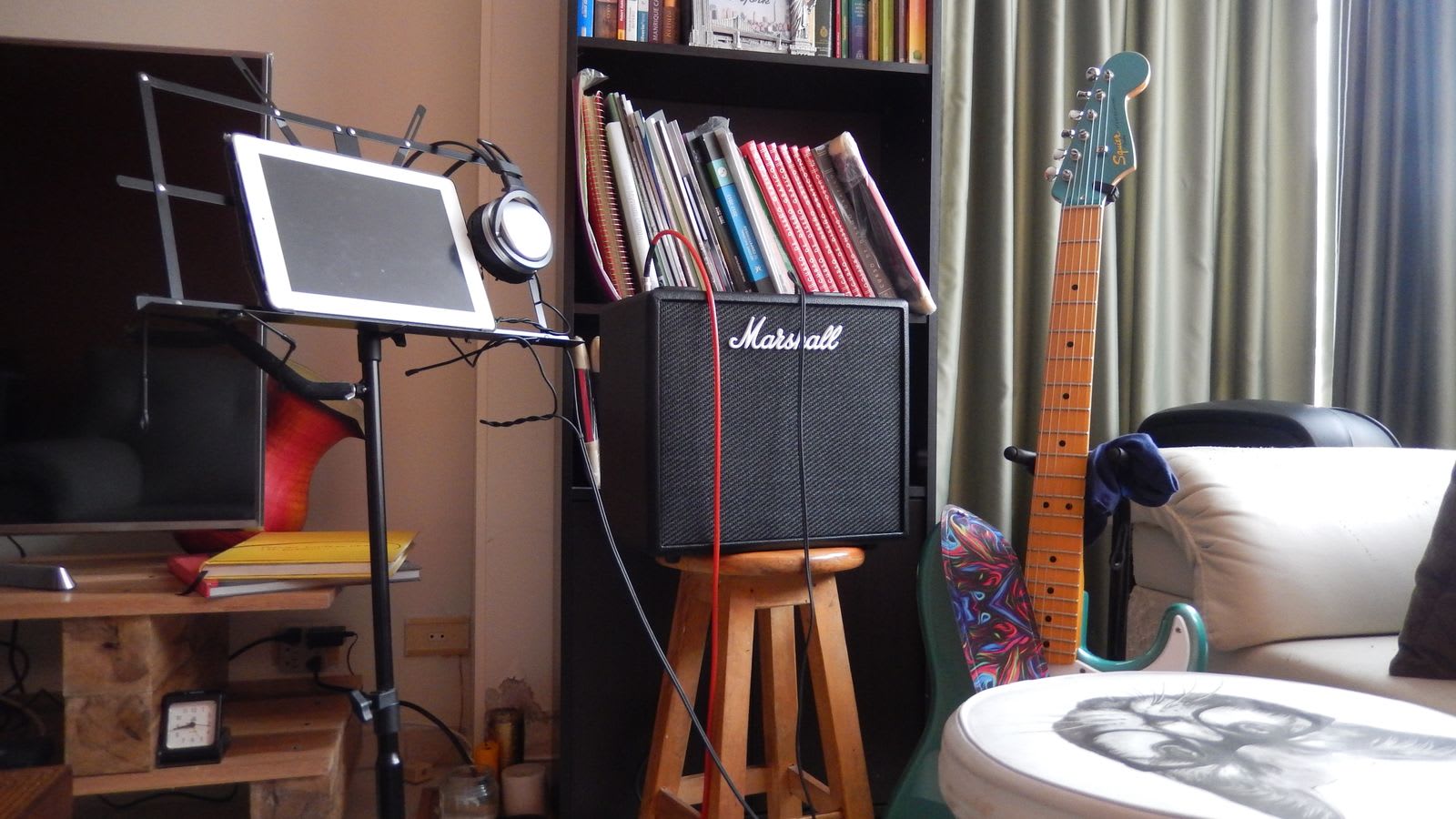
You can move the music you read in forScore to an Android score reader, but the file you export determines what travels with it. A visible fingering and an editable fingering are different things. This guide takes you through a small PDF-based transfer to MobileSheets, with one unmarked score, one annotated score and one setlist to check before tackling the rest.
If you're still deciding which reader suits you, start with our forScore alternatives for Android and Windows. Here, the destination is already chosen. We're working out whether your music arrives in a form you can rehearse from.
Keep a recovery copy outside the transfer folder
Before exporting anything, make a full forScore archive. Its backup documentation distinguishes a database backup, which omits your PDFs, from an archive that includes the documents and library information. Both use the .4sb extension, so the filename alone doesn't tell you whether the music is inside.
Store the completed archive somewhere you can reach without the old iPad, and keep a second copy on another device or storage service. This is your forScore recovery copy. The Android transfer below uses separate PDFs.
Create a new folder for those exports, outside forScore's own document storage. Apple's Files app can expose files that an app uses directly; forScore warns that renaming its documents there can disconnect associated information. Rename exported copies in your separate folder, leaving the originals alone.
Use your own pieces. These example filenames make the versions distinguishable while you check them.
01-Prelude-clean.pdfOne score with no added markings02-Sonatina-clean.pdfAn unmarked copy of the second score02-Sonatina-marked.pdfThe second score with visible annotationsRehearsal-order.txtA written record of the setlist order
Export the page and the markings deliberately
In forScore, open the first score, then Tools → Share. Save an unmodified PDF to your folder. Export the second score twice: unmodified, then permanently annotated. The official sharing guide explains these options and the separate forScore-specific 4SC format.
The original page, without your added forScore markings.
The markings become permanent page content.
Keeps editable forScore annotations in its own format.
Use the export option's ellipsis to preserve the original aspect ratio for annotated PDFs. Starting with the original page shape makes comparison easier. You can also limit PDF exports to a page range.
A permanently exported pencil mark can remain perfectly readable while no longer being something MobileSheets can erase separately. Adding new ink over that page doesn't recover the old editable layer. Keeping the clean PDF gives you somewhere to begin again when a fingering or bowing changes substantially.
Choose a marked score with details you could easily overlook: a faint pencil number, a coloured instruction near the margin and something on the final page. Write down where they are. A quick glance at page one won't establish that the whole export is usable.
forScore's annotation controls include stroke size, colour and transparency. Include a thin stroke or translucent highlight in your comparison if you use them.

You may decide to keep both versions in the Android library during the trial. Label them clearly enough that you won't open the clean one accidentally at rehearsal. Once you've settled on a working copy, the spare can stay in your export folder.
Import the copies into MobileSheets and compare them
Move the folder to your Android device, or use a cloud service available on both devices. MobileSheets supports local imports and services including Google Drive, Dropbox and OneDrive; its files and storage guide explains the options.
In MobileSheets, use Import → Local File to select the downloaded PDF. Follow the file selection into the import settings. Leave automatic cropping off for this first comparison. These controls are covered in the MobileSheets manual.
Check the file-management setting, too. MobileSheets can manage its own copies or use files in their existing locations. If it is referencing your transfer folder, that folder remains part of the working library: moving or deleting it later would be a problem.
Open each score beside the original on the iPad. Count pages, inspect the three markings you noted, and look at the outer edges of the notation. Then use the size you would actually read from at the instrument. A number that is visible when you zoom in may be too faint at your normal playing distance.
On a disposable working copy, add a new annotation, close the score and reopen it. Check that your new mark remains, then remove that new mark. This tests the editing behaviour you'll use from now on without asking an eraser to remove permanent content from the imported page.
Rebuild the setlist in playing order
Return to the list of all setlists in forScore. Swipe left on the one you're moving and choose Share. Select a text list, enable numbering and composer names, and leave alphabetical sorting off. Save or copy that text into your trial folder. forScore's setlist-sharing instructions explain these choices.
The Setlist Only export is a .4ss file without the scores; other .4ss options can include them. Don't treat that extension as a ready-made Android setlist. For this trial, use the written order and the individual PDFs you have already checked.
Create a setlist in MobileSheets and add the imported entries. Its Group Editor supports manual ordering: select manual sorting, arrange the entries with the drag handles and save. Open the result and check it against your numbered list.
MobileSheets allows a song to appear more than once in a setlist. If you need that repeat, include it in your trial. Also test the last page of one piece into the first page of the next; opening each PDF separately misses that transition.
For a fixed programme, forScore can export a merged PDF, including an annotated version. That is a useful fallback when you need the whole running order in one file. Retain the individual scores as well: changing one piece or reusing it in another programme is easier when it remains separate.
Account for metadata and music inside books
A library can contain the right PDFs and still be awkward to search. Check the title, composer, edition or arrangement, and any tags you actually use. “Sonatina” is not much help when several editions share that title. Add a distinguishing detail before copying the naming pattern across hundreds of entries.
forScore offers a CSV metadata export through its Backups panel. Save it as a reference for this work. Don't assume it can be fed straight into MobileSheets: the developer's January 2026 explanation of CSV importing describes an index associated with a PDF, rather than a general many-file catalogue migration. For the pilot, check and fill the few fields you need manually.
Book excerpts need a separate check. MobileSheets' developer distinguishes bookmarks embedded in a PDF from bookmarks created within forScore. Copying the PDF does not, by itself, move the latter. Open the book on Android and check what navigation is actually available.
Record both the printed page number and its position in the file. Printed page 23 might be PDF page 27 because of a cover, contents page and other front matter. If the pilot setlist needs only that short piece, exporting its page range as a separate PDF can be simpler than rebuilding a book index immediately. Keep the complete book in your archive.
Use the trial before retiring the old iPad
Keep a short record of what still needs attention. Use locations and filenames, rather than “looks fine”: “marked Sonatina, page 3, upper-right fingering too faint” gives you something you can fix. The checklist below is ready to copy into your notes.
Your transfer recordPiece / filename: ____________________ Date: __________
Page count and edges checked; selected markings legible at playing size. Note any missing detail and its page.
Title and composer searchable; edition identifiable; any book excerpt opens at the intended music.
All setlist entries present, including repeats; page turns across piece boundaries checked.
Scores reopen with networking off; usual stand, orientation and page-turn controls work in a run-through.
Original archive and Android backup saved off-device; unresolved items listed before the next batch.
For the offline check, confirm both Wi-Fi and mobile data are off; airplane mode may leave Wi-Fi enabled. Reopen the app and load the setlist. If you use a Bluetooth pedal, re-enable Bluetooth while keeping networking off, then try the actual turns.
After the trial, make a MobileSheets library backup. Its full backup uses an .msb file containing the library and settings. Keep a copy away from the Android device. If you can check restoration on a spare installation, do so without overwriting a working library.
How quickly you move the rest depends on what the checklist uncovers. Ten straightforward PDFs might need little work; a book-heavy library with years of markings will take longer. Move a manageable batch, record any exceptions and rehearse from the new device before deleting anything from the old one. Keep the original archive even after the iPad has gone.
Photo: Nicolás León / Pexels.
More on practice tools.

Android Tablets for Sheet Music: Size, Pen and Stand Fit
Compare Android tablets for sheet music by actual page size, pen support and stand fit, with a to-scale visual and full setup budgets for three models.
Pract.is Editorial

Meet Cue: Pick Up Where Your Practice Left Off
Meet Cue, our score-following practice companion. Choose a passage, review where your session went, and leave a useful starting point for next time.
Pract.is Editorial

ABRSM Piano 2027–28: Which Syllabus Should You Choose?
Keep your 2025–26 piano pieces or start the new ABRSM syllabus? Understand the 2027 overlap, video deadline, one-hand options and correct book editions.
Pract.is Editorial